
Step by Step Guide
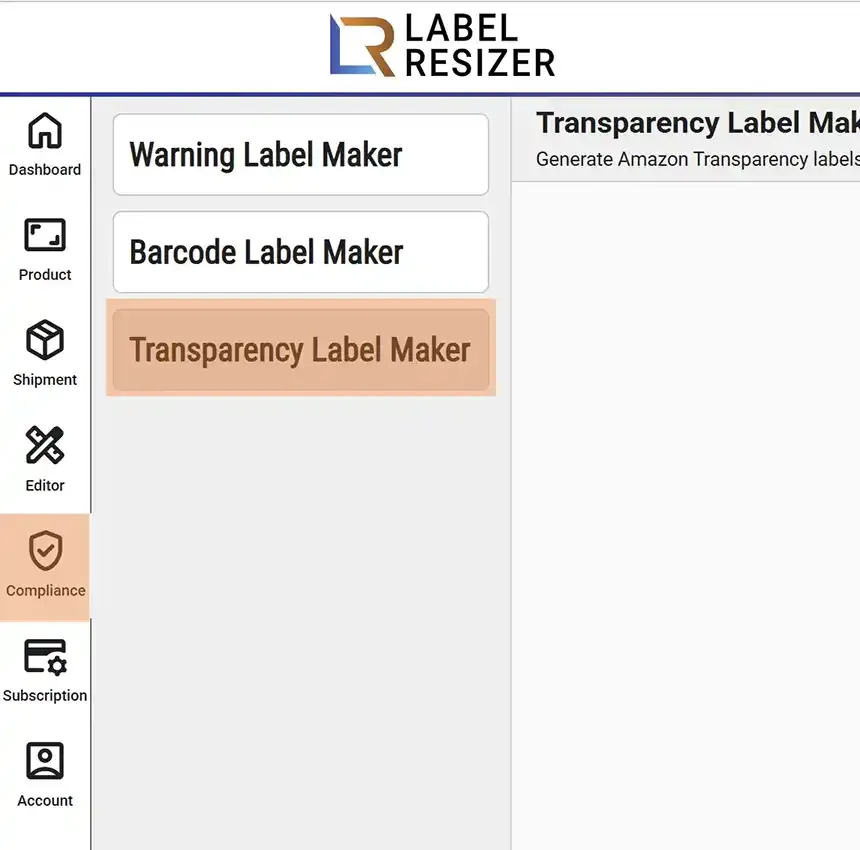
- 1After logging into Label Resizer, click on Tools from the leftmost menu, then select Transparency Label Maker from the sub-menu.
- 2Determine the Transparency Label Layout, then select the CTA option - Scan with the Transparency app or Amazon Shopping app.
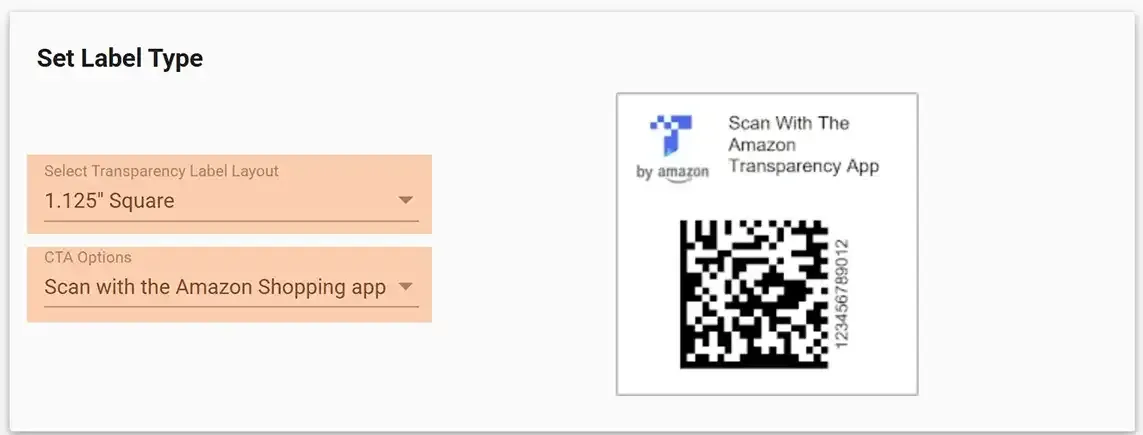
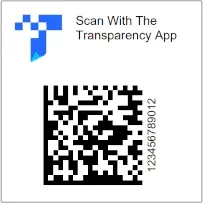
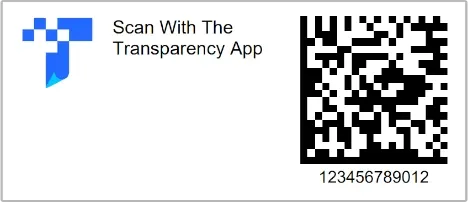
- 3After setting your layout and CTA option, you will see the label template on the right. There are 6 layouts (Type 1 to Type 6) and 2 CTA types. Type 5 and Type 6 are also available as 40 Up on US Letter sheets for Avery label paper.
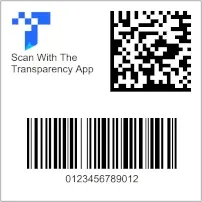
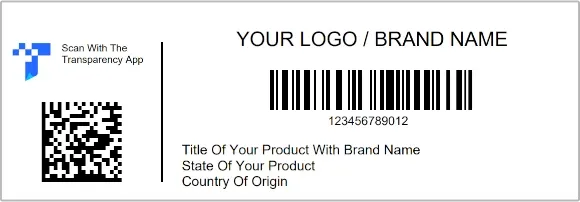
Manual - Single Product
- 1Click on the Manual - Single Product tab and fill in the required fields based on your layout type. The same product information is printed on every label you generate.
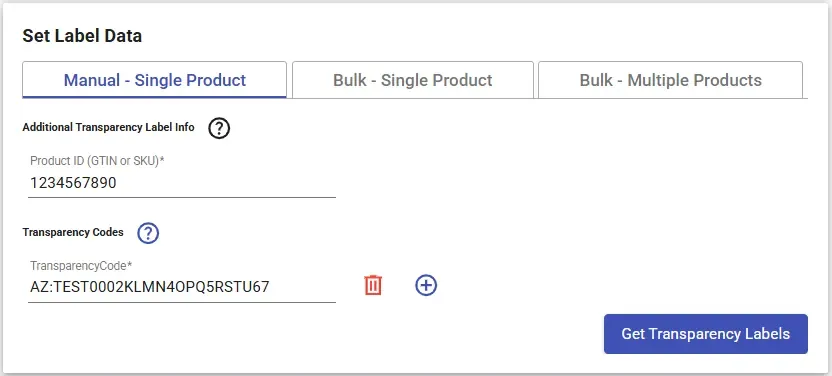
Type 1 (1.125" x 1.125"), Type 2 (1.75" x 0.75") or Type 5 (2.0" x 1.0")
Enter the Product ID (GTIN or SKU). It is printed as text; no barcode is drawn.
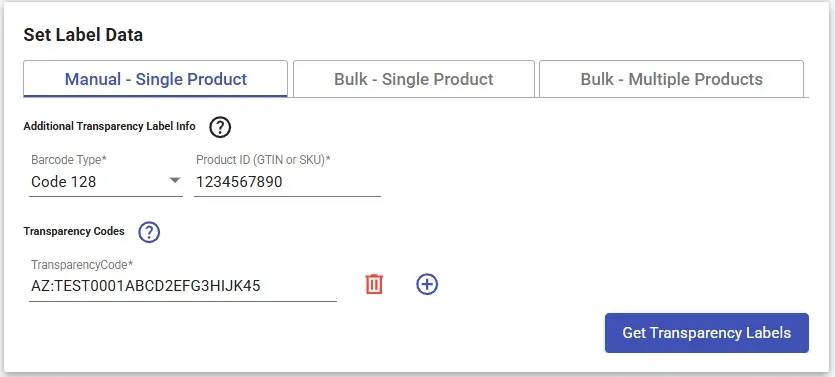
Type 3 (1.375" x 1.375")
Select the Barcode Type and enter the Product ID (your FNSKU or GTIN).
Type 4 (4.0" x 1.375")
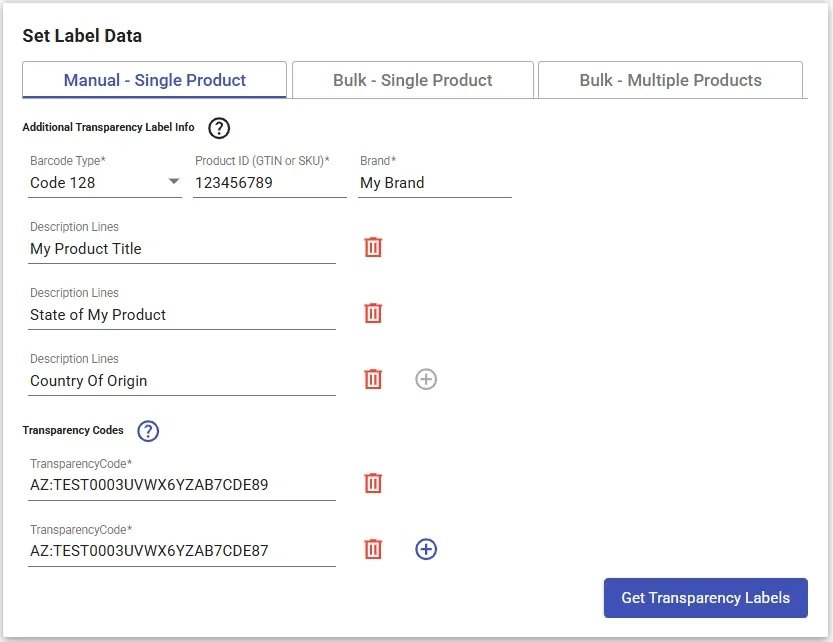
Select the Barcode Type, enter the Product ID (GTIN or SKU), type your Brand Name (required), and optionally add up to 3 description lines.
Type 6 (2.0" x 1.0")
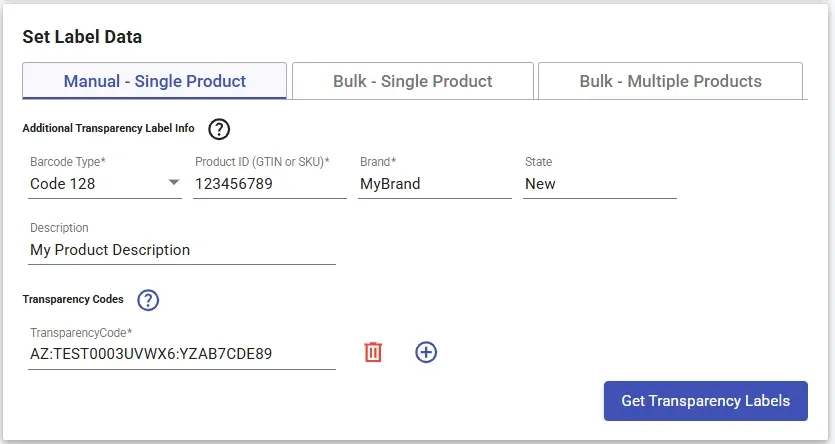
Select the Barcode Type, enter the Product ID (GTIN or SKU), Brand Name (required), and optionally a State (for example NEW) and a Description.
- 2Input your Transparency codes. Click the + icon to generate more labels with unique Transparency codes.
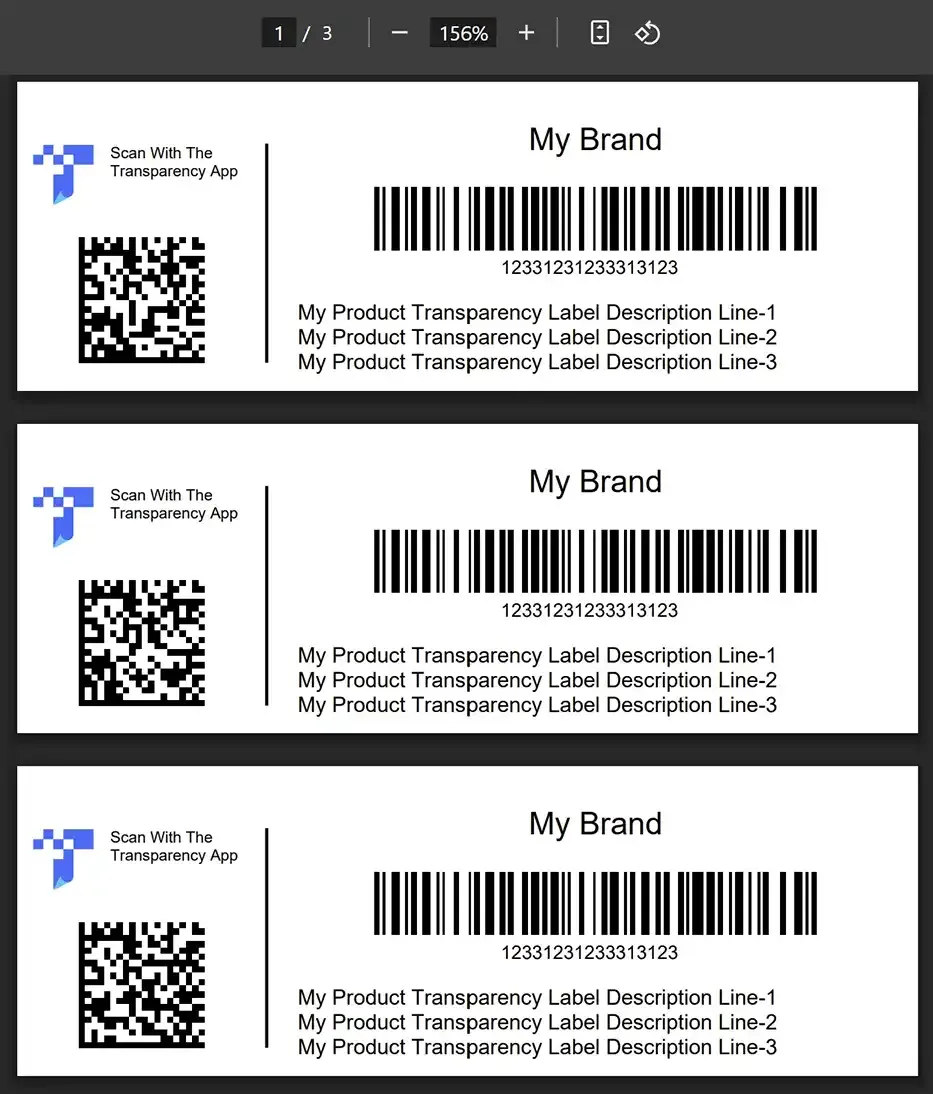
- 3Click the Get Transparency Labels button. Your labels will be downloaded as a PDF and opened in a new browser tab.
Bulk - Single Product
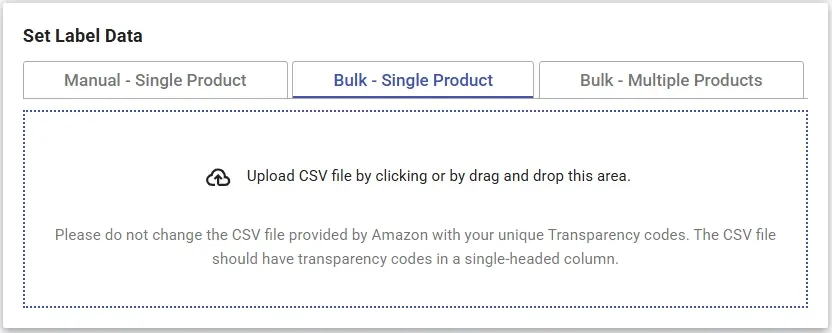
- 1Click the Bulk - Single Product tab. Upload the CSV file by clicking or dragging and dropping. You can use the CSV file provided directly by Amazon - do not modify the column headers. The CSV should have Transparency codes in a single-headed column. All labels get the same product information, which you enter in the window that opens after the upload.
- 2Click the Get Labels button. Your labels will be downloaded as a PDF and opened in a new browser tab.
Bulk - Multiple Products
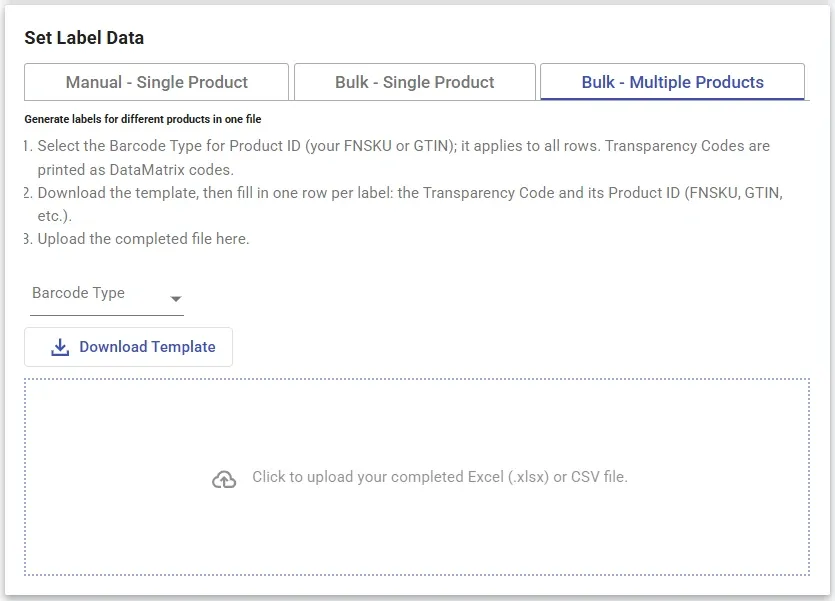
- 1Select your layout, then click the Bulk - Multiple Products tab. Use it when every label needs its own Product ID (and, on some layouts, its own brand and description). This tab is available to signed-in users only.
- 2On layouts that print a product barcode (Type 3, Type 4 and Type 6), select the Barcode Type for the Product ID (your FNSKU or GTIN): Code 128, EAN-13, EAN-8 or UPC-A. It applies to all rows. Type 1, Type 2 and Type 5 print the Product ID (GTIN or SKU) as text, so no Barcode Type is asked. The 40 Up versions work the same way as their base layout.
- 3Click Download Template and fill in one row per label. The Transparency Code is printed as a DataMatrix code. The columns depend on your layout:
Type 1, Type 2, Type 3 and Type 5
Transparency Code, Product ID (GTIN or SKU).
Type 4
Transparency Code, Product ID (GTIN or SKU), Brand (required), Description Line 1, Description Line 2, Description Line 3.
Type 6
Transparency Code, Product ID (GTIN or SKU), Brand (required), Description, State.
- 4The downloaded template already keeps cells in text format, so GTINs and UPCs stay intact. If you type into a new Excel file, format the Product ID (GTIN or SKU) column as Text; otherwise Excel may turn long numbers into scientific notation or drop leading zeros. Every Transparency Code must be unique.
- 5Click the upload area and choose your completed Excel or CSV file. The file is checked first. If something is wrong, you will see the row numbers with the problem, such as an empty cell, a duplicated Transparency Code, a Product ID (GTIN or SKU) that does not match the selected Barcode Type or has a wrong check digit, or a missing Brand. Fix those rows and upload again.
- 6When the file passes the check, the labels are generated automatically and downloaded as a PDF.