
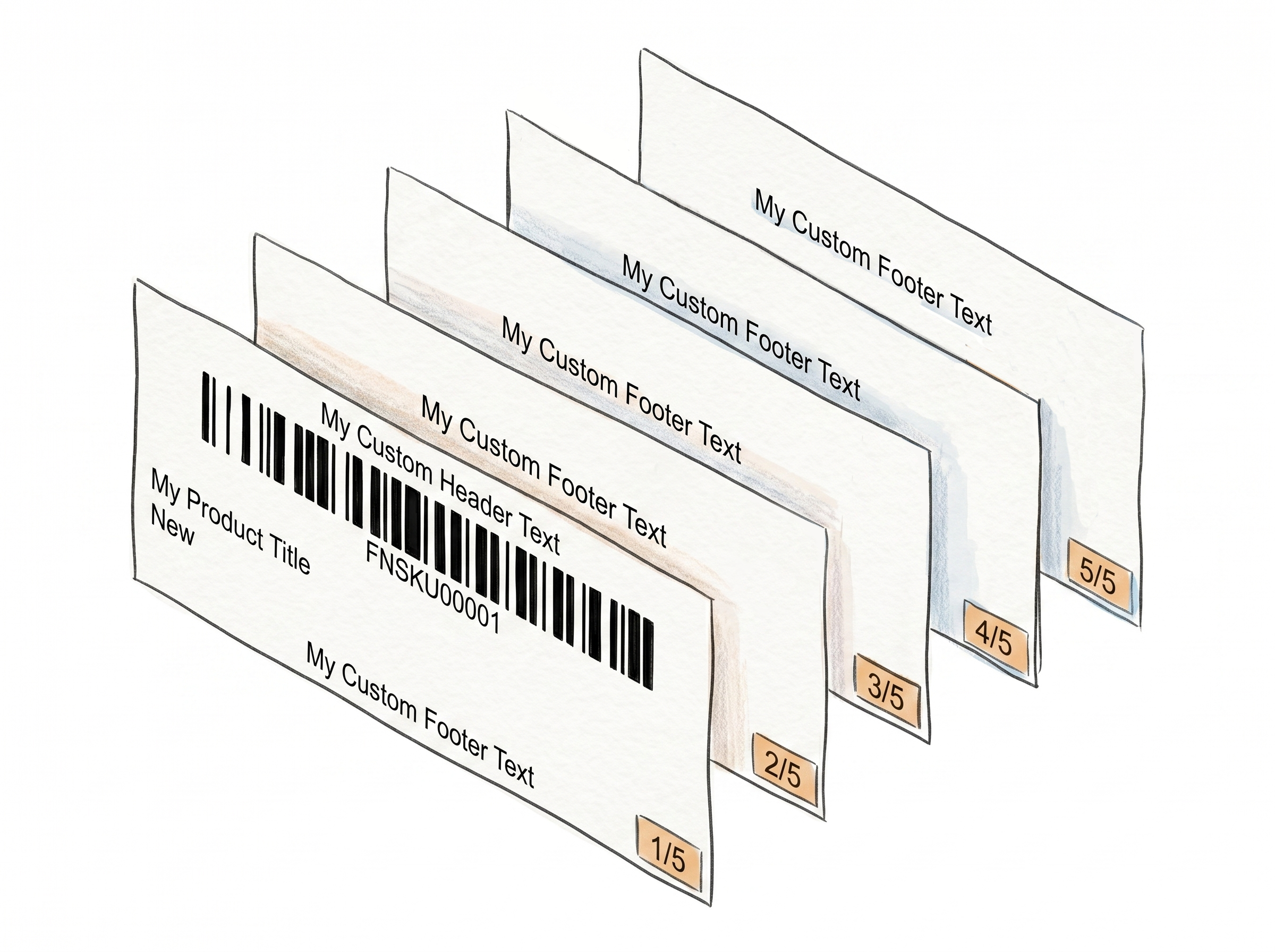
Add Custom Text to Every Label - Expiration Dates, Brand Names, and More
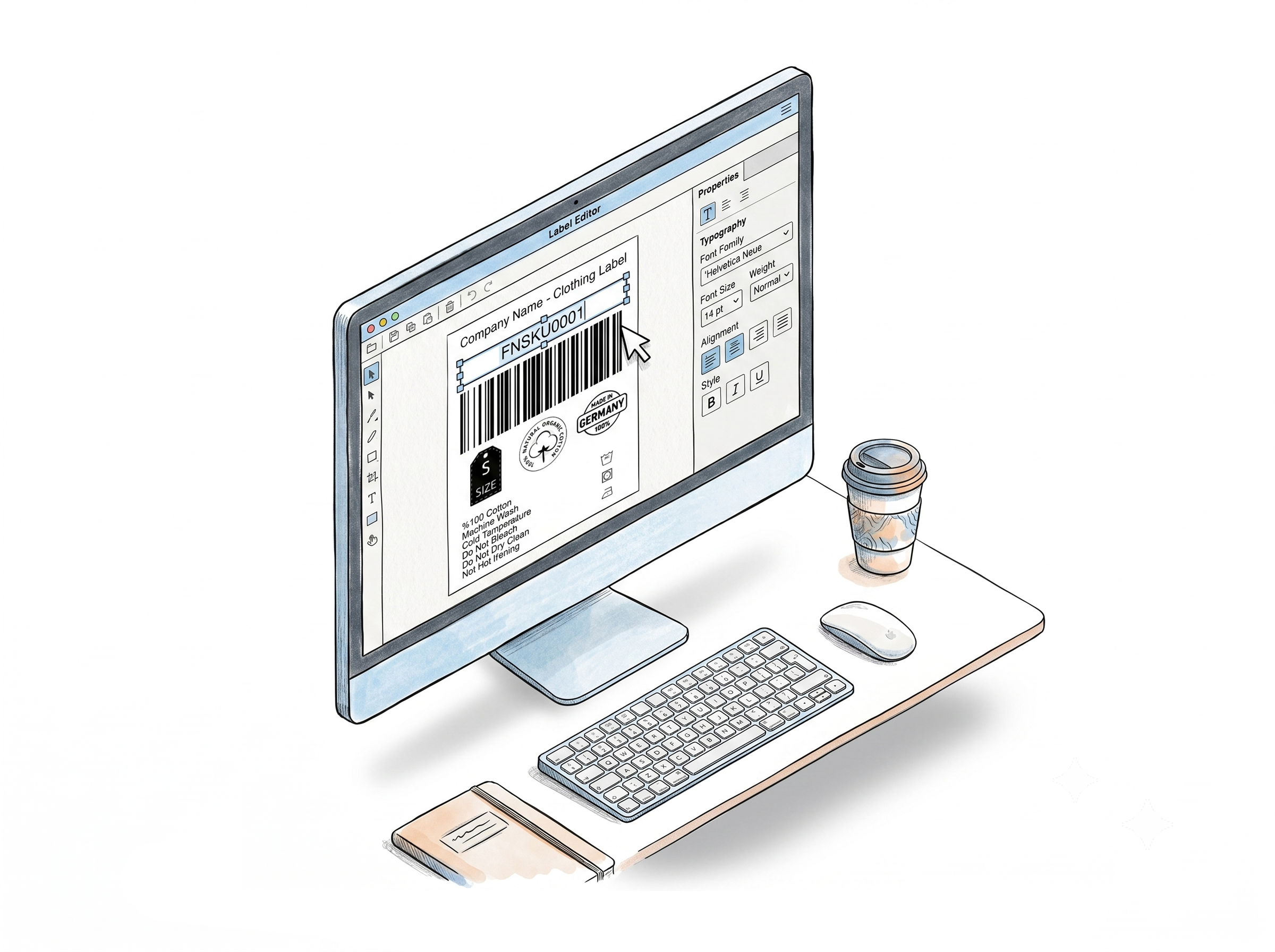
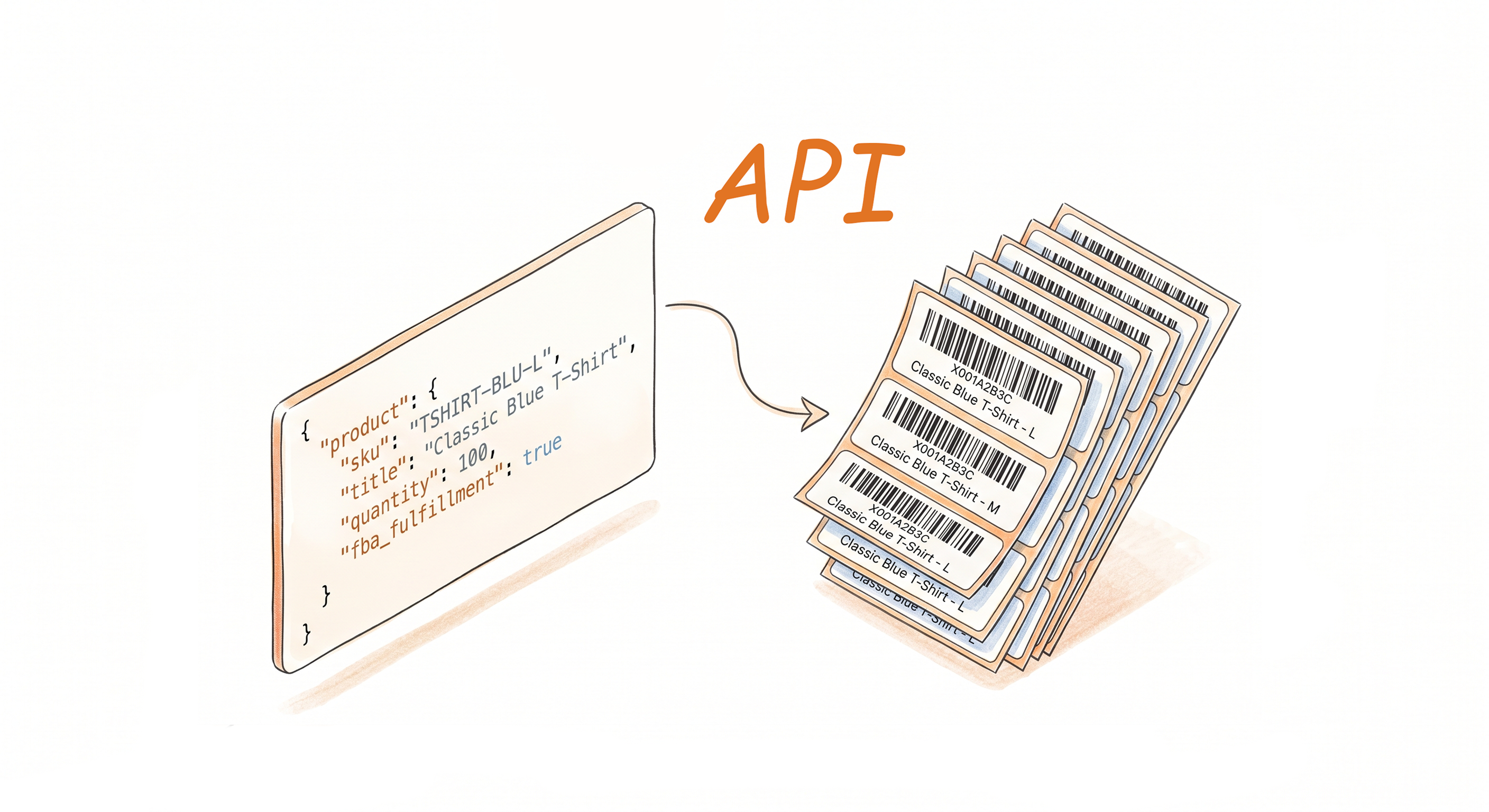
Label Resizer's Free Text feature lets Amazon FBA and Walmart WFS sellers add custom text directly onto their product labels - in the header, footer, or next to the condition field. No design tools, no reprinting workarounds. You type it in, it appears on the label, exactly where you need it.
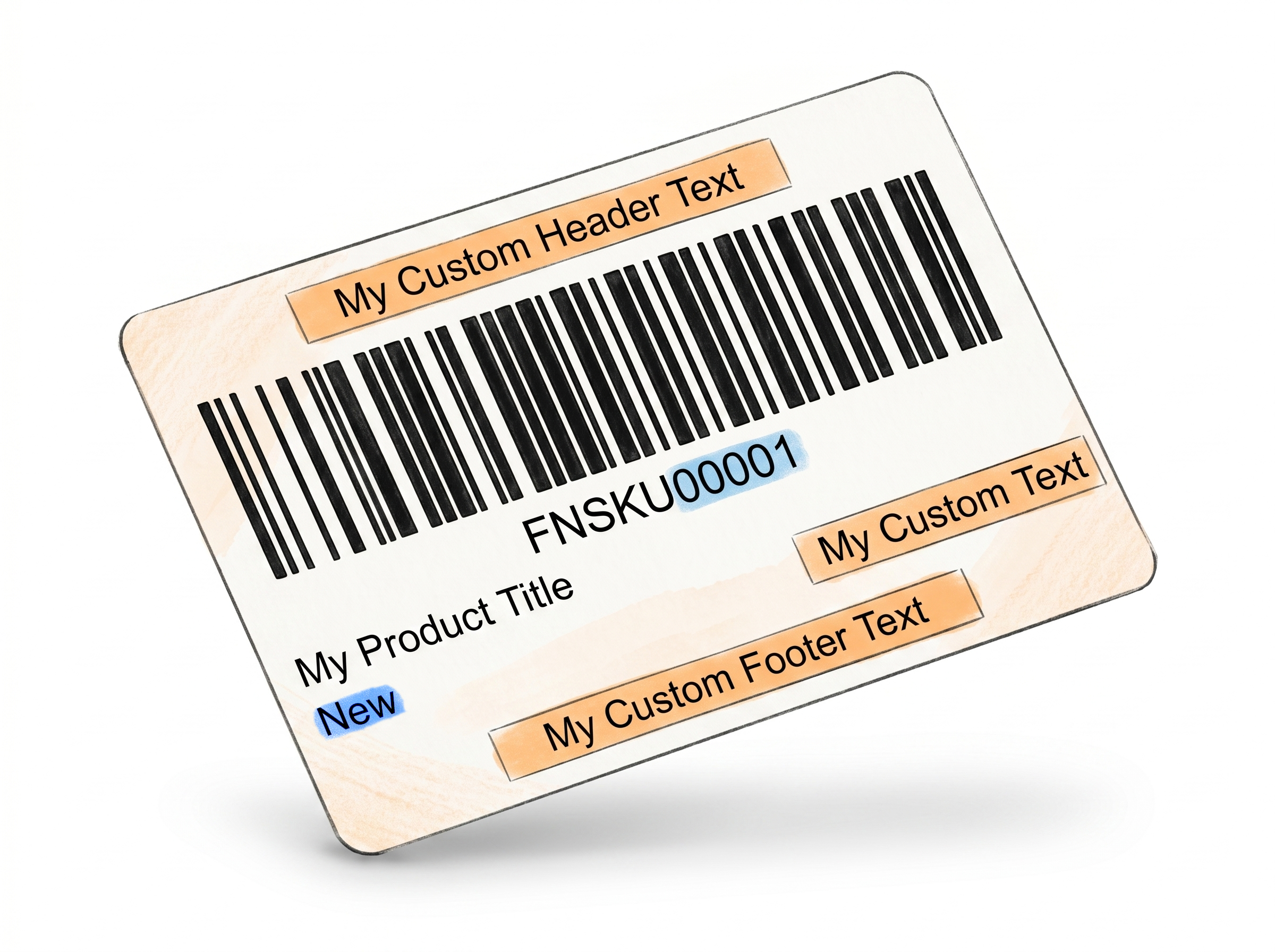
Put the Right Information in the Right Place
Label zones that work for your product
Place exactly the right information where Amazon and Walmart need to see it - without redesigning your labels.Three placement zones, one workflow
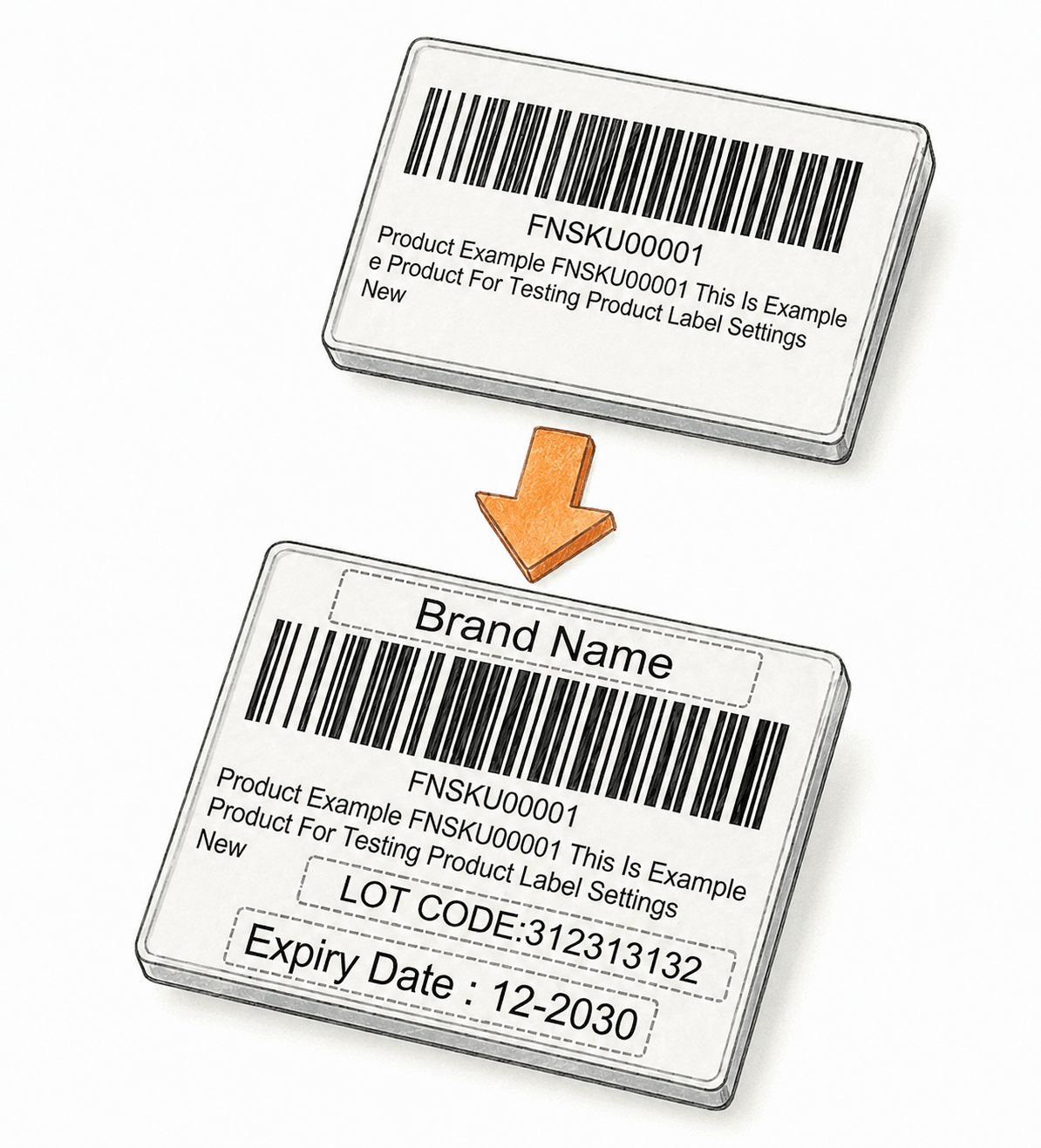
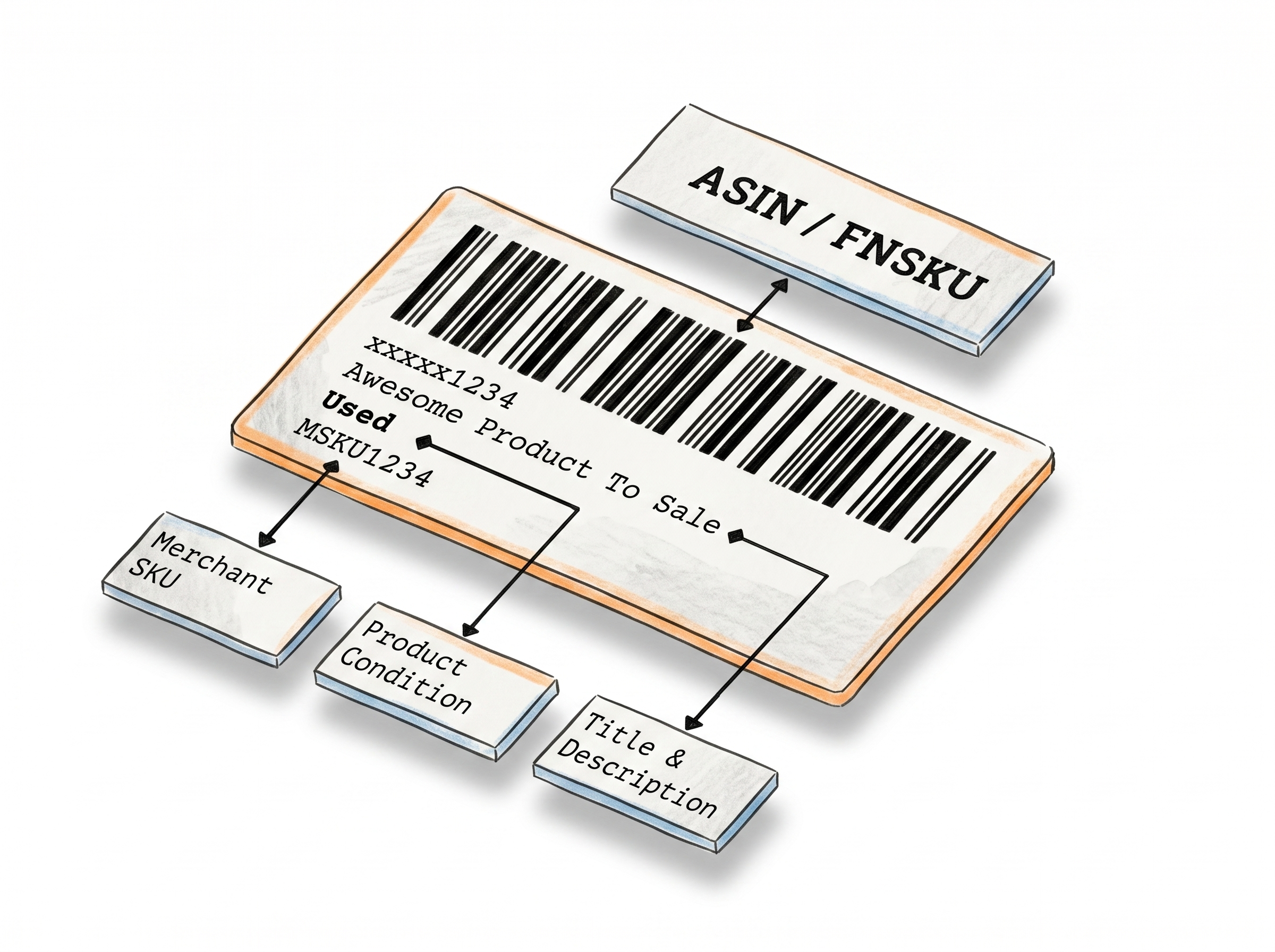
Add text to the header (top), footer (bottom), or the empty space next to the Condition field - without touching anything else on the label.
Common use cases that actually matter
Expiration dates, country of origin ("Made in USA"), brand names, lot numbers, compliance warnings - whatever your product or marketplace requires.
Text that fits, always
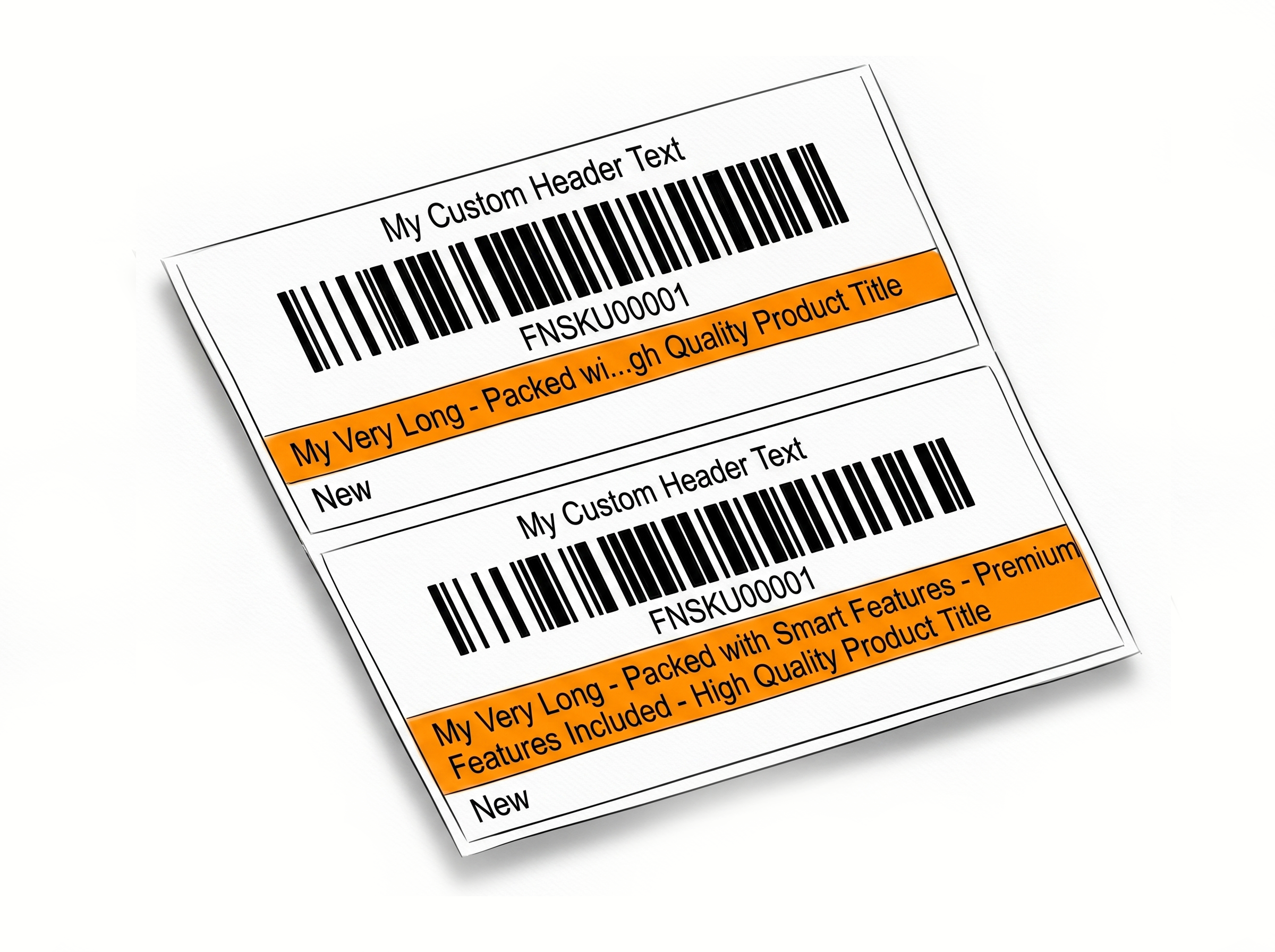
If your text is too long for the allocated space, the system trims it from the middle - so both the start and end of your text stay readable. No cutoffs, no guessing.
Font size control where it counts
Header and footer texts have independent font size settings. Text placed next to the Condition field automatically matches the condition font size for visual consistency.
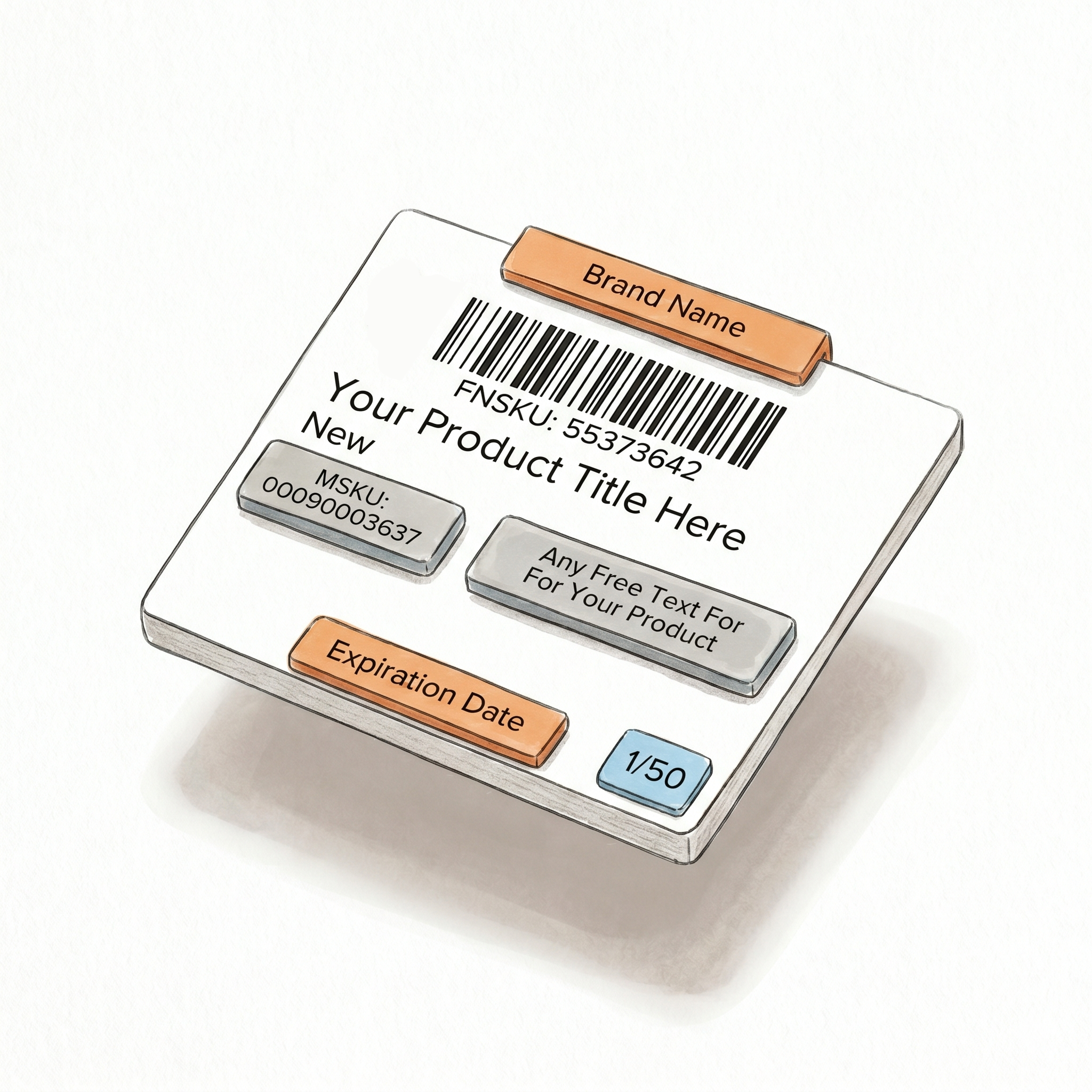
Faster Workflows with Spreadsheet Input and Extension Shortcuts
Automate your label text - from spreadsheet to printed label, without manual entry.
Dynamic texts from your spreadsheet
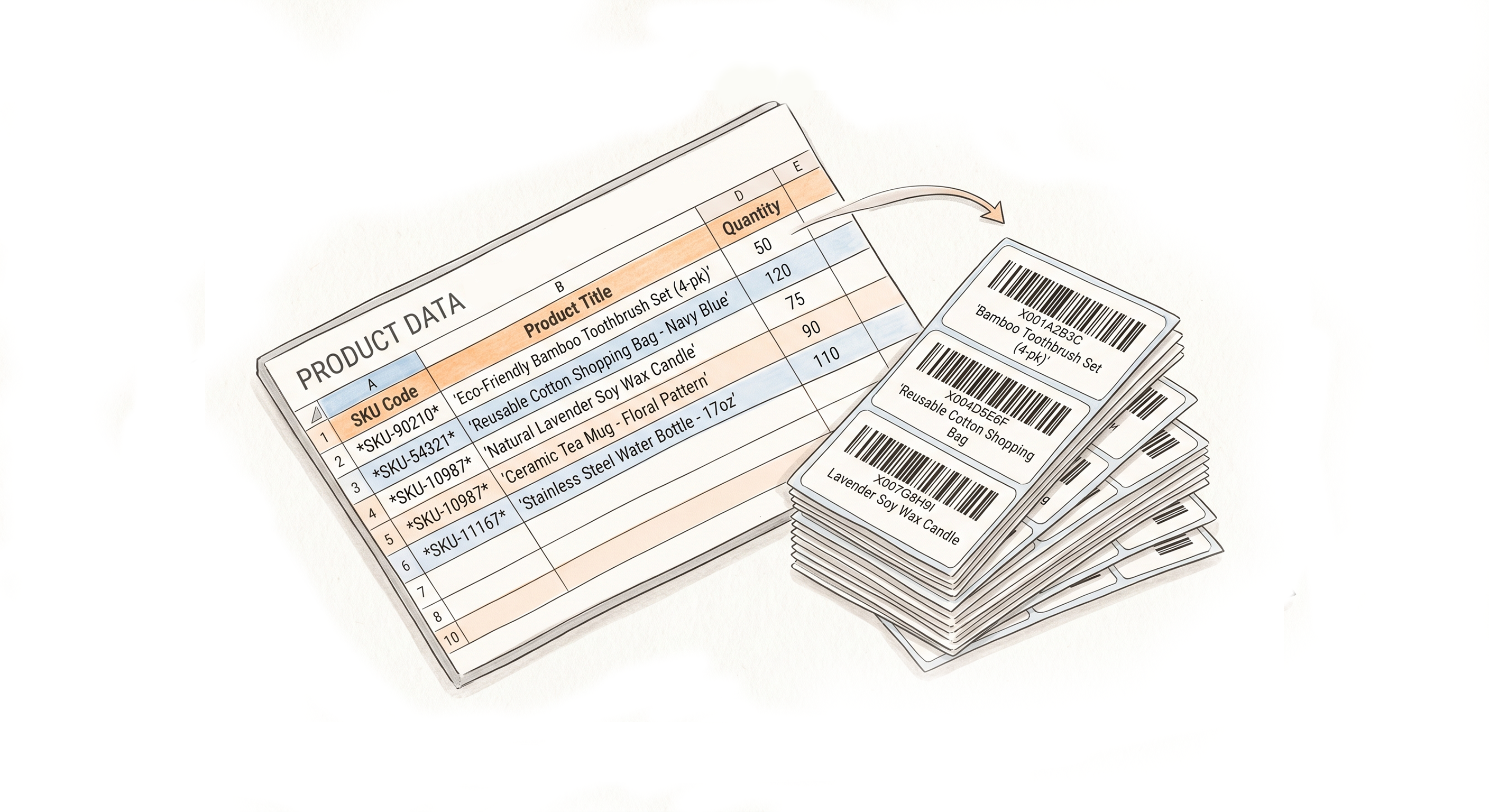
Feed free text values directly from your input spreadsheet file. Different text per FNSKU, applied automatically at label generation - no manual entry per batch.
Insert and Append buttons in the extension
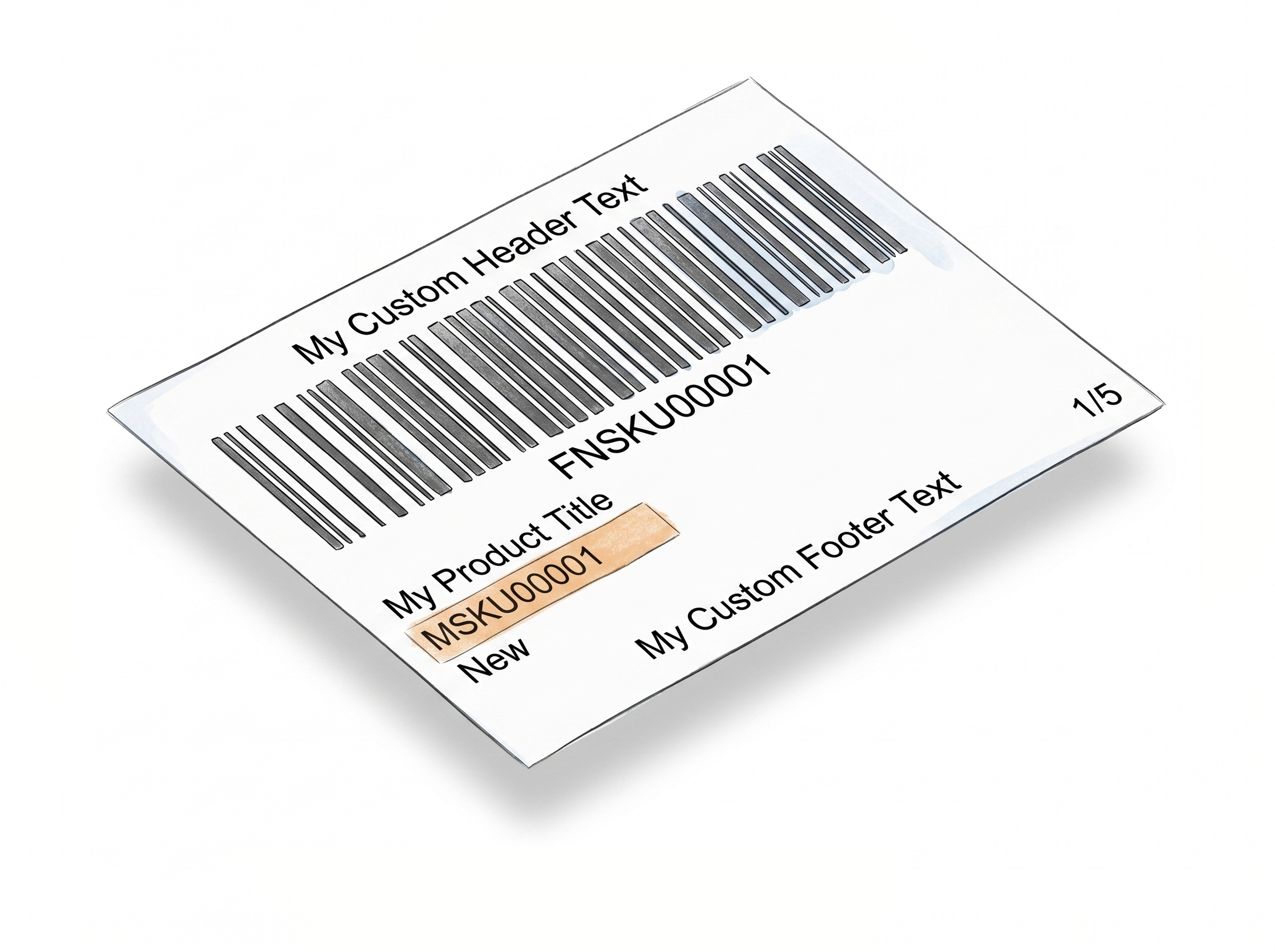
When generating labels through the browser extension, dedicated buttons let you instantly insert or append platform values - ASIN, MSKU, or Number of Labels - into any of the three text fields.
Insert vs. Append - know the difference
Insert replaces whatever is currently in the field. Append adds to the end of existing content. Chain multiple values (e.g., ASIN + MSKU) into a single field in seconds.
Texts saved between sessions
Whatever you enter per FNSKU is remembered and pre-filled next time. You only update what's changed. Turn it off anytime with the "Remember My Free Text Entries" toggle.
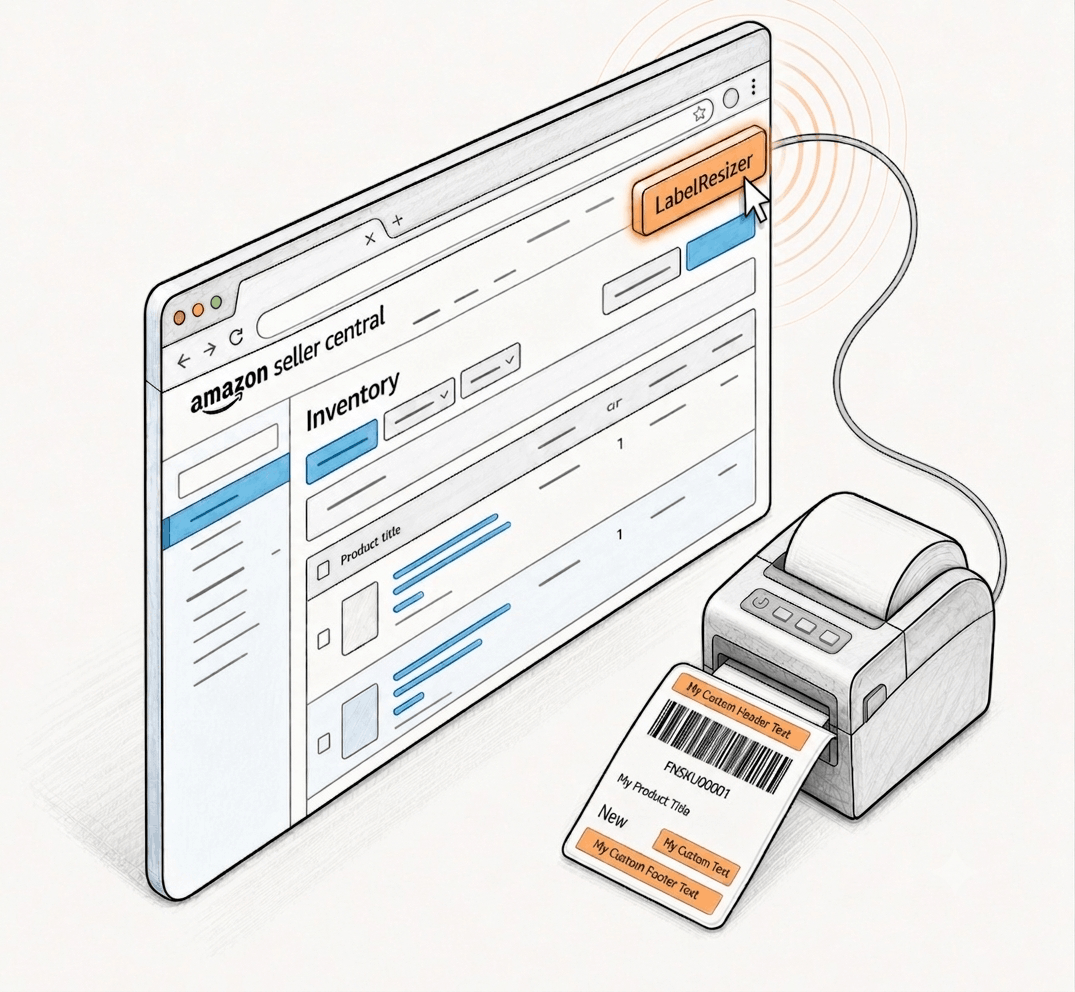
Compliance, Brand Consistency, and Seller Trust
Meet marketplace requirements and represent your brand - on every single label you ship.
Stay compliant with Amazon and Walmart requirements
Add required warnings, handling instructions, or regulatory text directly to labels - without relying on pre-printed packaging or separate stickers.
Reinforce your brand on every shipment
Display your company name or trademark in the header of every label. Small detail, consistent impression across every unit you ship.
Apply to one label or all at once
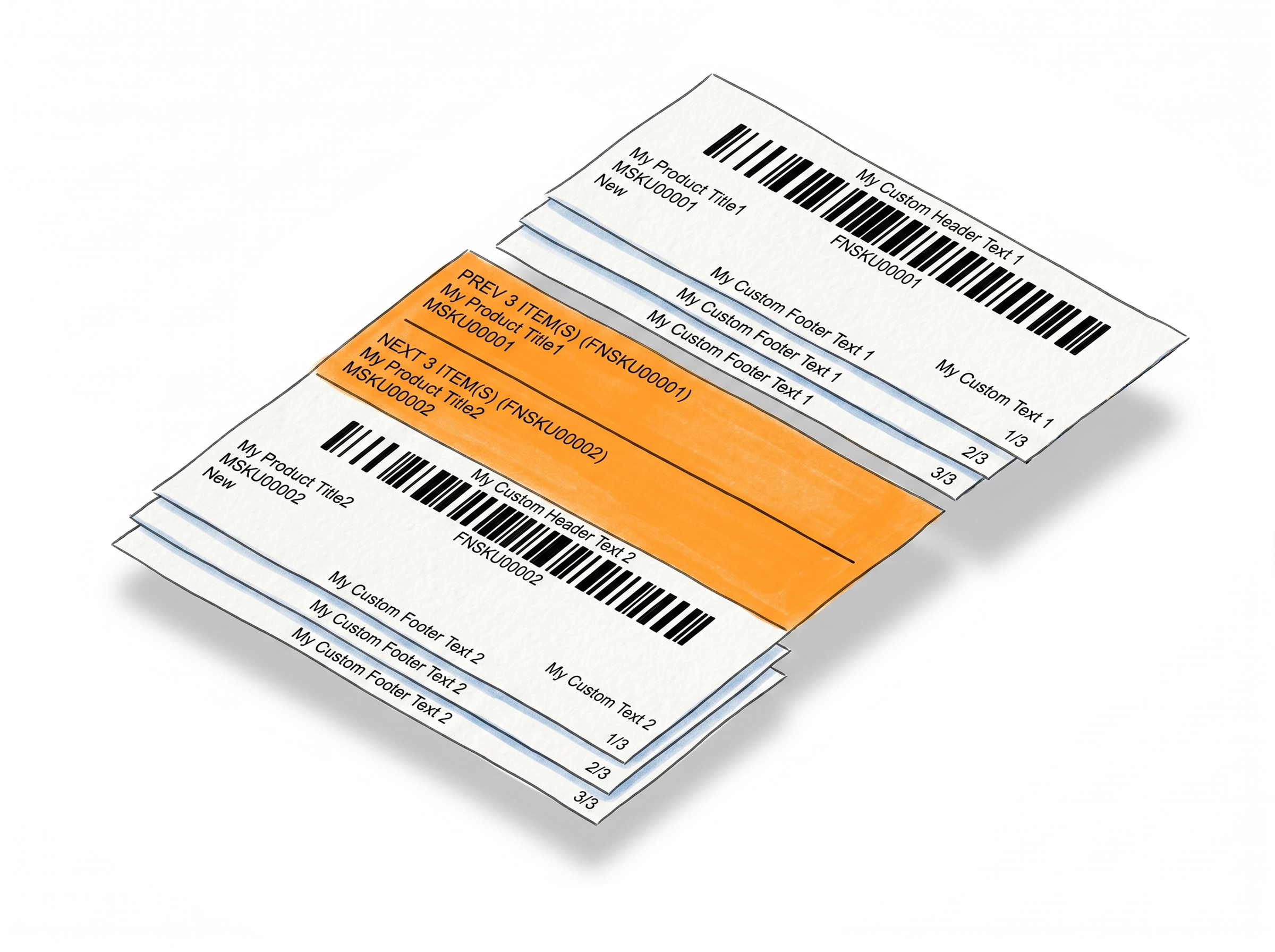
Enter text per FNSKU individually, or use the bulk input at the top of the popup to apply the same text to every label in the current batch.
How It Works
Three steps to get custom text on every label.
Step 1: Enable Free Text in Settings
Go to Product → Product Label Settings in your Label Resizer dashboard. Toggle on "Enable Free Text" and set your preferred font sizes for header and footer. Save.
Step 2: Enter Your Text When Generating Labels
A popup appears automatically whenever you generate labels. Enter header, footer, or side text per FNSKU - or use the top fields to apply the same text to all labels at once. Your entries are saved for next time.
Step 3: Download Labels with Your Custom Text Applied
Click Resize Labels. Your labels download immediately with all free text placed, sized, and trimmed correctly. Done.
Done!
How to Add Custom Text to Amazon Product Labels
Everything You Need for Smarter Product Labeling
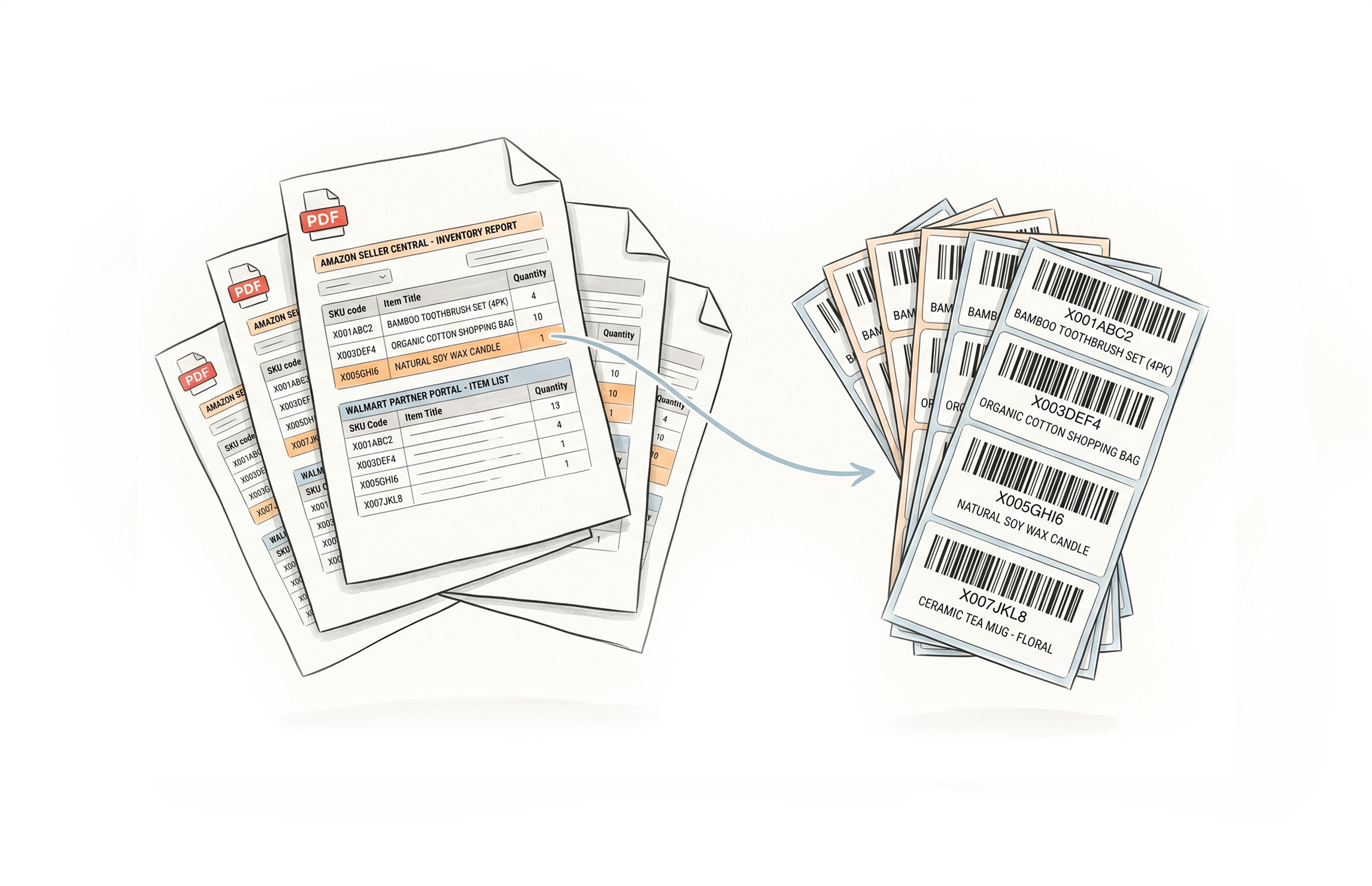
Label Resizer gives you full control over how your product labels are created, organized, and printed.
Other Product Labeling Features
Flexible Ways to Generate Product Labels

Choose A Plan
Get 100 Product Labels And 10 Shipping Labels Free Every Month - No Credit Card Needed
Monthly Yearly 2 months free
Frequently Asked Questions
Everything you need to know about adding custom text to your FBA and WFS labels.
Can I add different text to each FNSKU label?
Yes. The Free Text popup shows a separate row for each FNSKU in your batch. You can enter unique header, footer, and side text per item. If you want the same text on all labels, use the bulk input fields at the top of the popup.
What happens if my text is too long?
The system automatically trims it - removing characters from the middle rather than the end. This keeps both the beginning and end of your text visible, which is usually more readable than a simple cutoff.
Does Free Text work with the browser extension?
Yes, and the extension adds extra functionality. You get Insert and Append buttons to quickly populate any text field with values like ASIN, MSKU, or Number of Labels - without typing them manually.
Can I use Free Text to add expiration dates that change per batch?
Yes. Use the spreadsheet input method to feed dynamic text values per FNSKU. Different expiration dates, lot numbers, or other batch-specific details can be included in your input file and applied automatically.
Will Free Text appear on every label type?
Free Text works on the default product label layout. It places text in three defined zones: header, footer, and next to the Condition field. The layout and zone availability may vary if you're using a non-default label format.
Does saving my text entries mean it auto-applies without confirmation?
No. Saved entries are pre-filled in the popup for your convenience, but the popup always appears for review before any labels are generated. You confirm or update before proceeding. Disable saving anytime via the "Remember My Free Text Entries" toggle.