
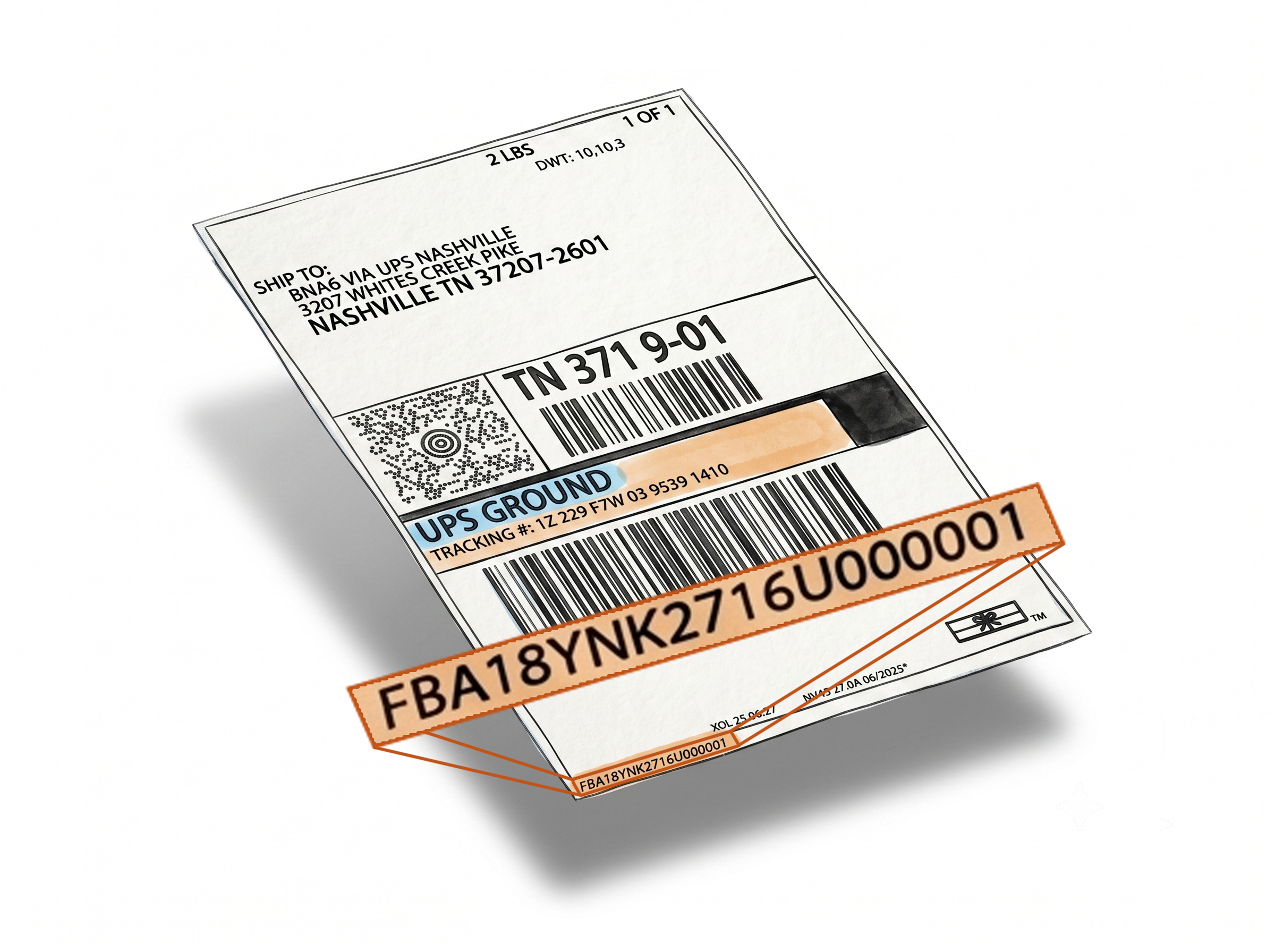
Print Custom Text on Your Amazon Box Labels
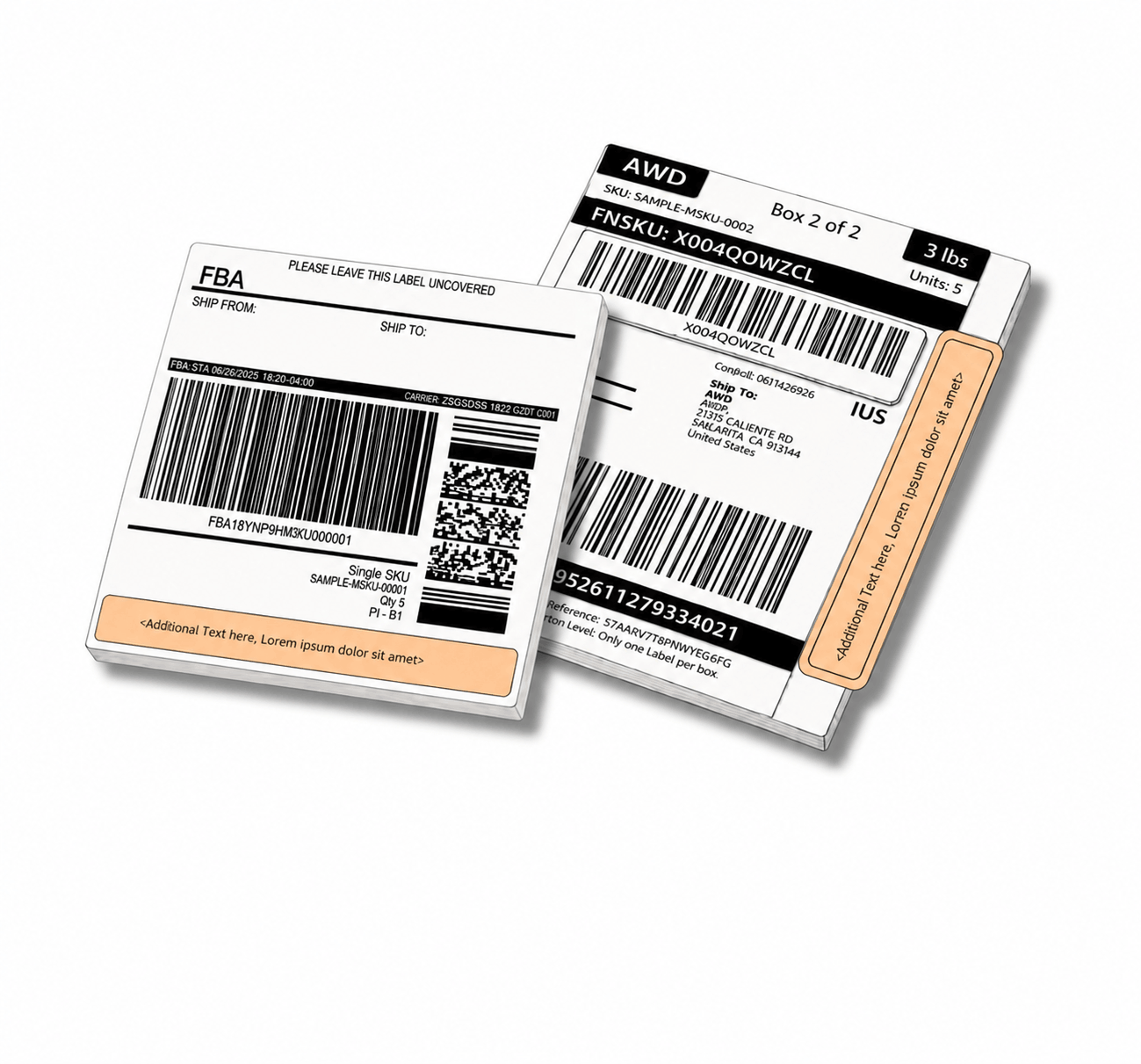
The Free Text feature lets you add any custom information directly onto Single SKU Box Labels when printing Amazon shipment labels through the Label Resizer extension - whether you're using the Send to Amazon or AWD workflow, and whether your shipment is SPD or LTL.
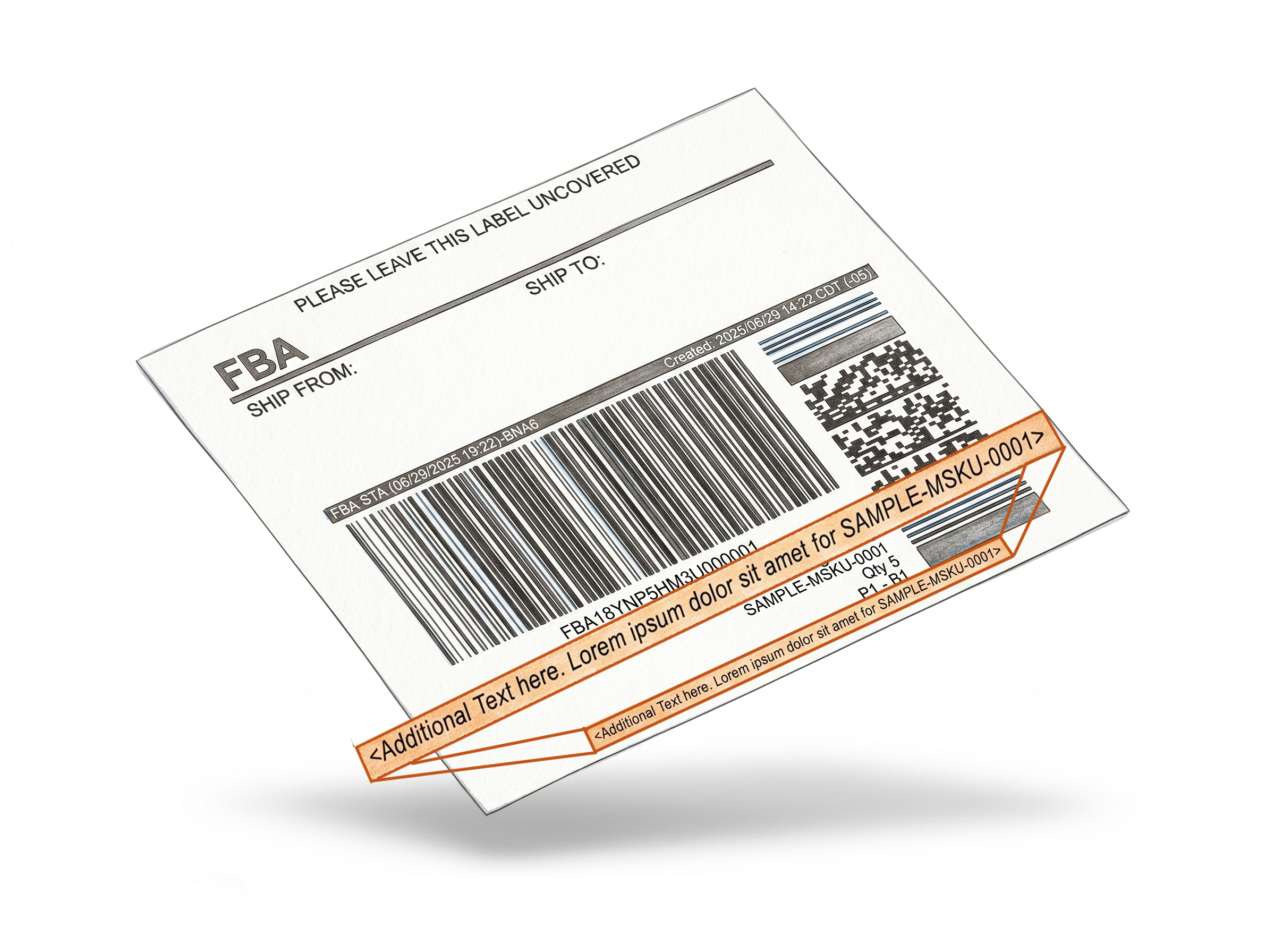
Whether it's handling instructions, supplier notes, or internal references - the text prints at the bottom of each box label automatically, per product.
Add Any Custom Information, Per Product
Any text, on any box label, per product - entered during printing
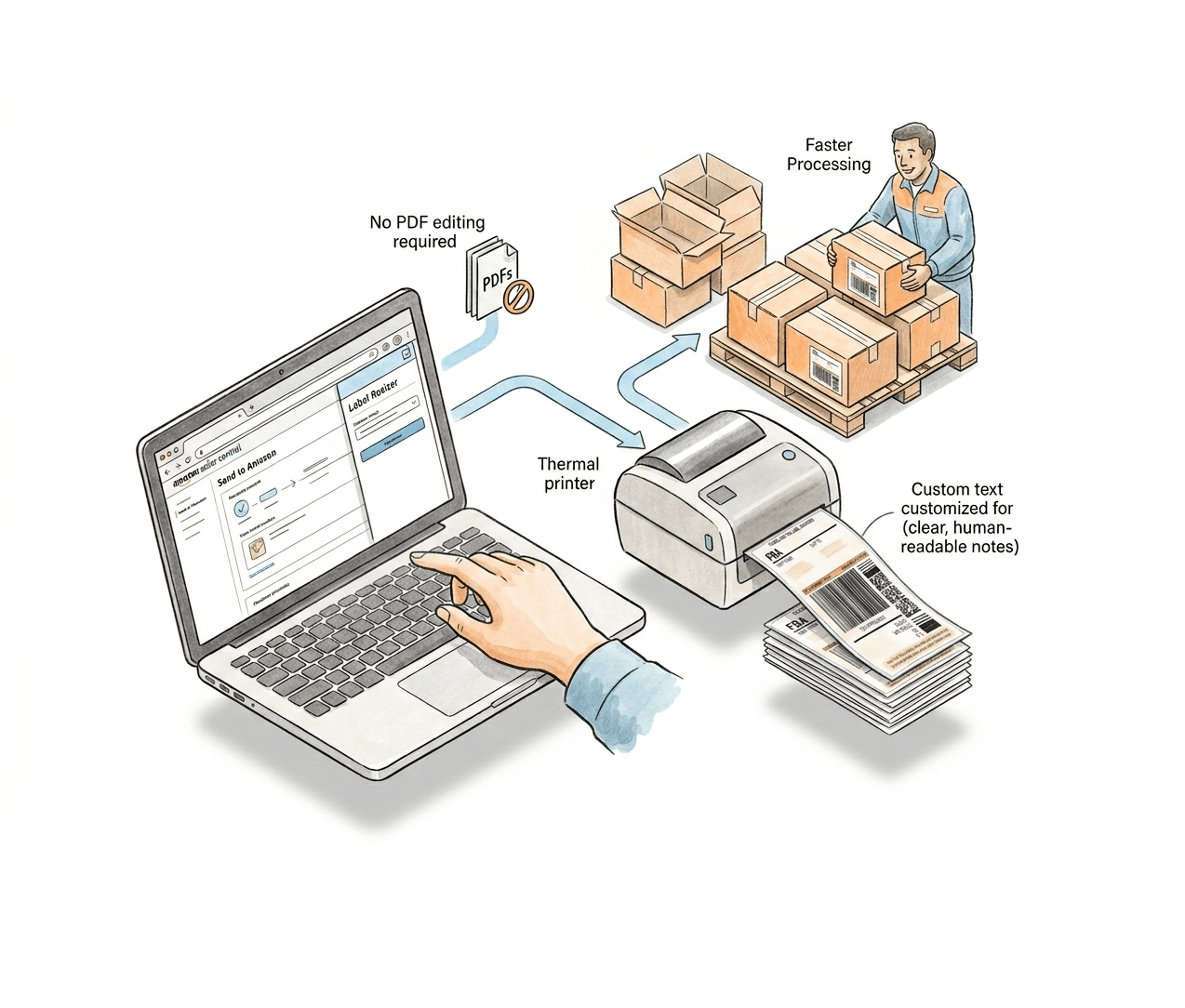
A popup per SKU lets you type whatever is needed. The text lands on the label automatically - no PDF editing required.Custom text on every box label
When printing box labels through the extension, a popup appears for each product letting you enter custom text. Whatever you type prints directly at the bottom of the corresponding Single SKU Box Labels.
Per-product control
Free text is entered separately for each SKU during the printing session - so different products can carry different notes in the same shipment without any manual editing of the PDF afterward.
Useful for warehouses, suppliers, and logistics teams
Add handling instructions, lot references, internal SKU notes, or special sorting instructions. Anyone receiving the box can act on the information without scanning or looking anything up.
Fewer Mistakes, Faster Processing
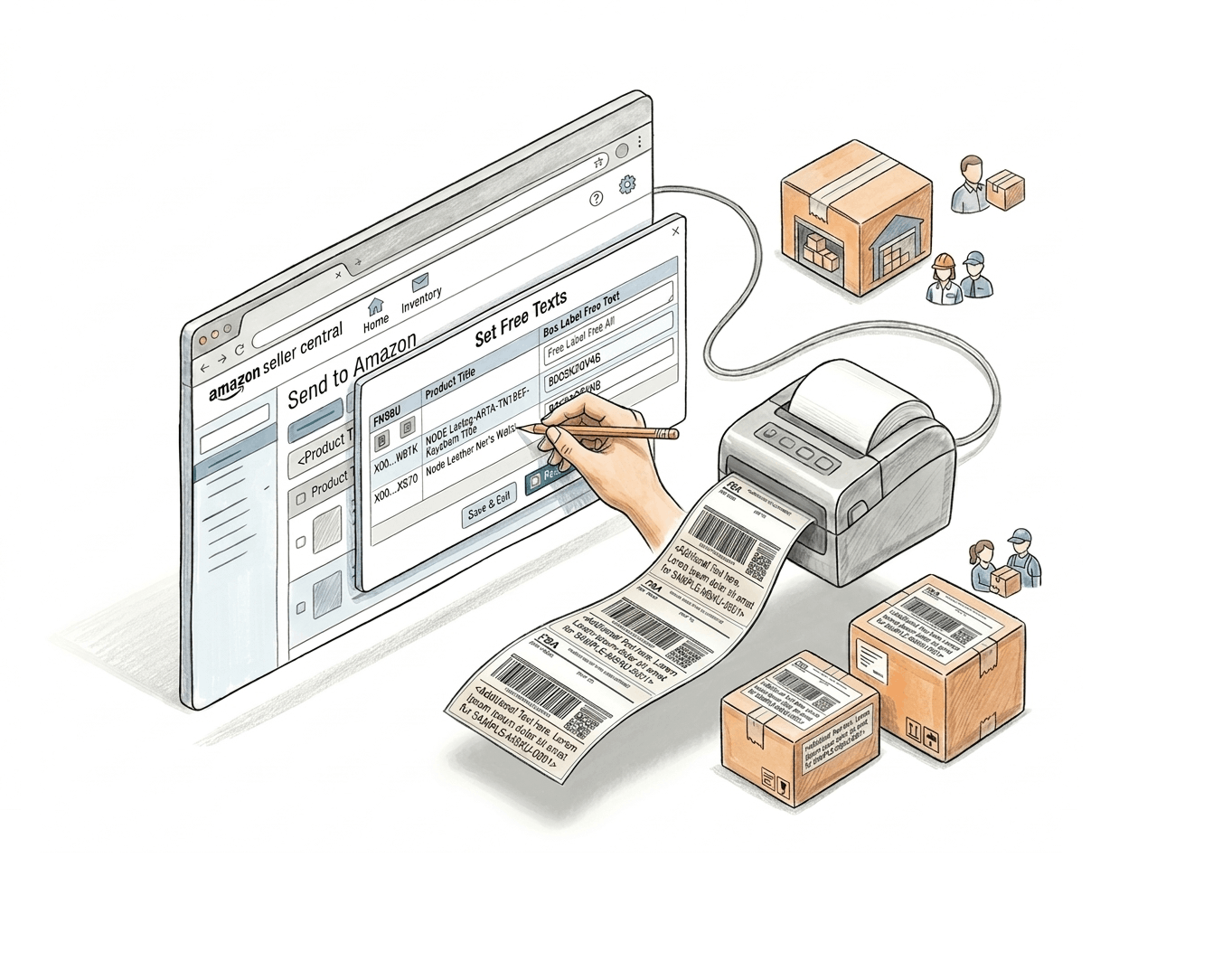
No extra tools, no post-processing - custom text is on the label before it leaves the printer.
Reduce sorting errors in bulk shipments
When boxes carry clear, human-readable notes alongside the barcode, warehouse staff make fewer mistakes - especially when handling multiple SKUs in a single prep session.
No PDF editing required
Custom text is added during label generation - you don't need to open, edit, or reformat any PDF files after downloading. Enable the feature, enter the text in the popup, and it's on the label.
Works inside Amazon Seller Central
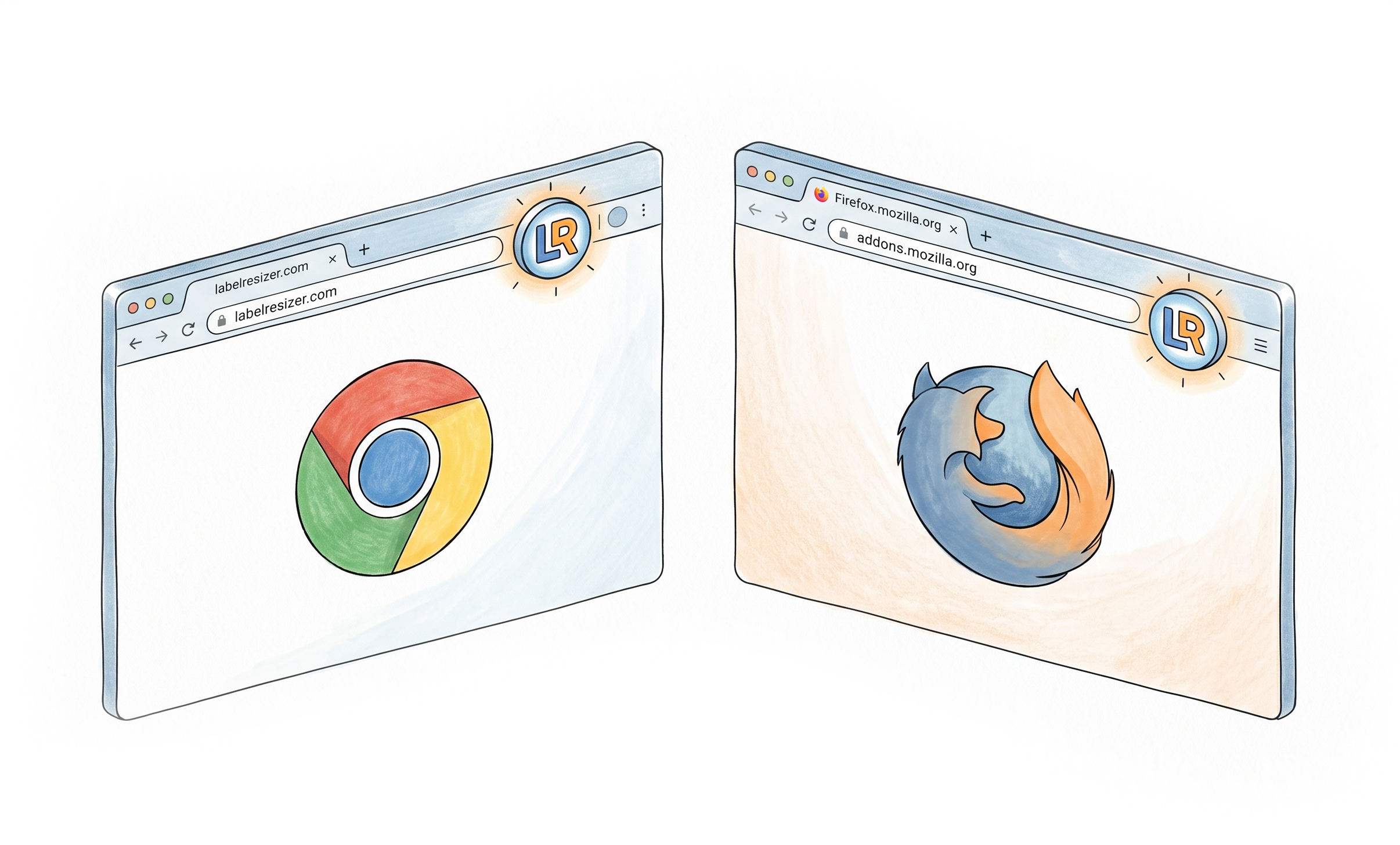
The feature runs through the Label Resizer Chrome and Firefox extension, directly within your existing Send to Amazon and AWD workflows - for SPD or LTL shipments alike.
Works Across Every Inbound Workflow and Shipment Type
Works the same way for Send to Amazon and AWD, on SPD or LTL shipments
No matter which Amazon inbound workflow you're shipping through, or whether the shipment type is SPD or LTL, the Add Free Text popup appears the same way during printing - so your custom notes always land on the Single SKU Box Label.Send to Amazon workflow
Shipping inventory through the standard Send to Amazon workflow? Add Free Text prints your custom notes on every Single SKU Box Label as part of the regular printing session - no separate setup needed.
AWD (Amazon Warehousing and Distribution) workflow
Sending inventory into AWD instead? Single SKU Box Labels generated for AWD shipments support the same Add Free Text workflow, so your custom information travels with the box from the very first leg.
SPD and LTL shipment types
Whether the shipment itself is Small Parcel Delivery (SPD) or palletized Less Than Truckload (LTL), the same free text popup applies - so freight carriers and receiving teams get the same custom notes on every box.
How It Works
Enable once, enter text per product during printing - it's on the label automatically, for any shipment type.
Step 1: Enable the Feature
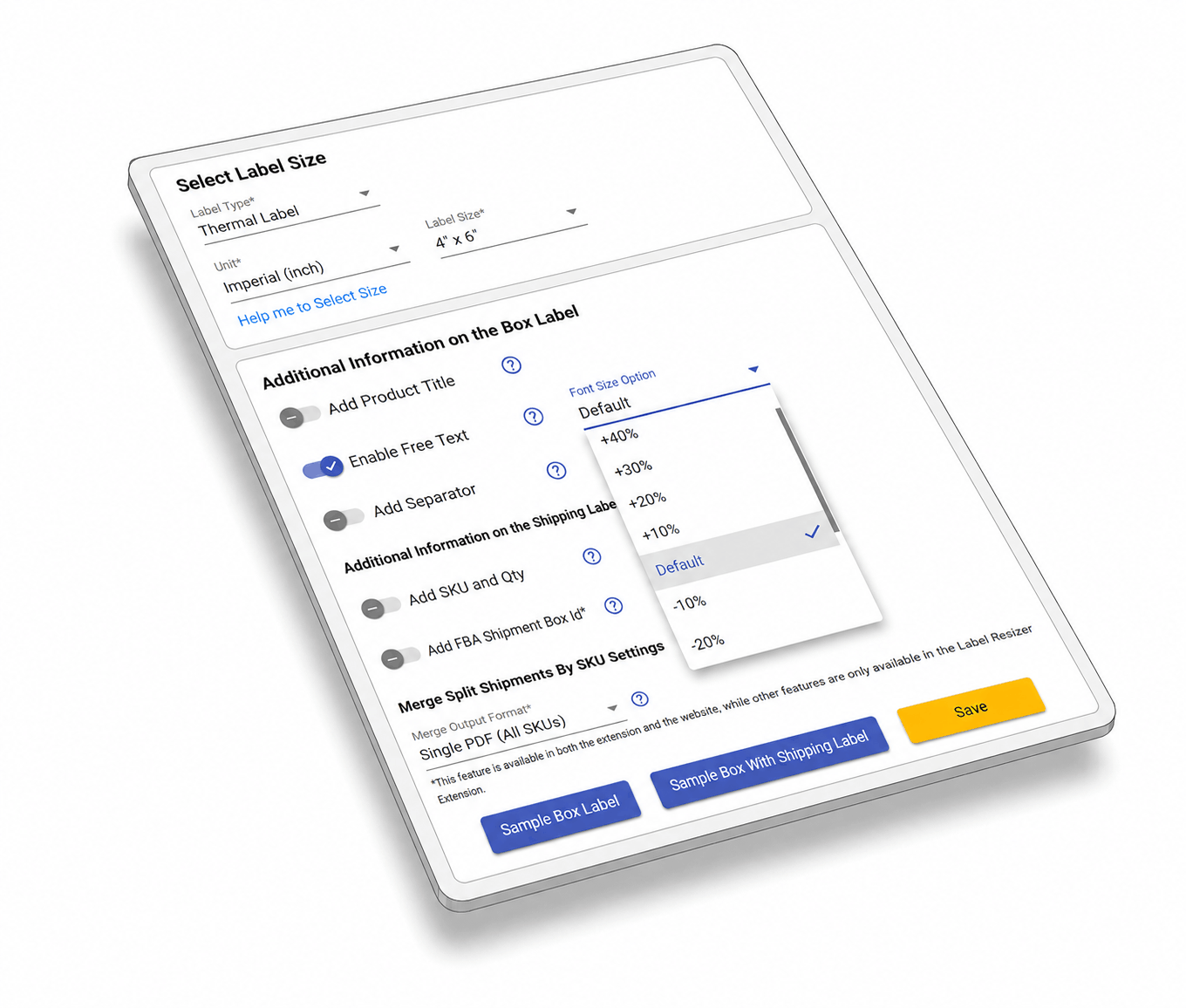
Log into Label Resizer, go to Shipping in the left menu, and select Shipping Label Settings. Enable the Add Free Text feature and click Save.
Step 2: Enter Your Text During Printing
When printing box labels through the Label Resizer extension inside Amazon Seller Central, a popup appears for each product. Enter the custom text you want to appear on the box labels for that SKU, and adjust the font size from -50% to +50% of the default size if needed.
Step 3: Print and Apply
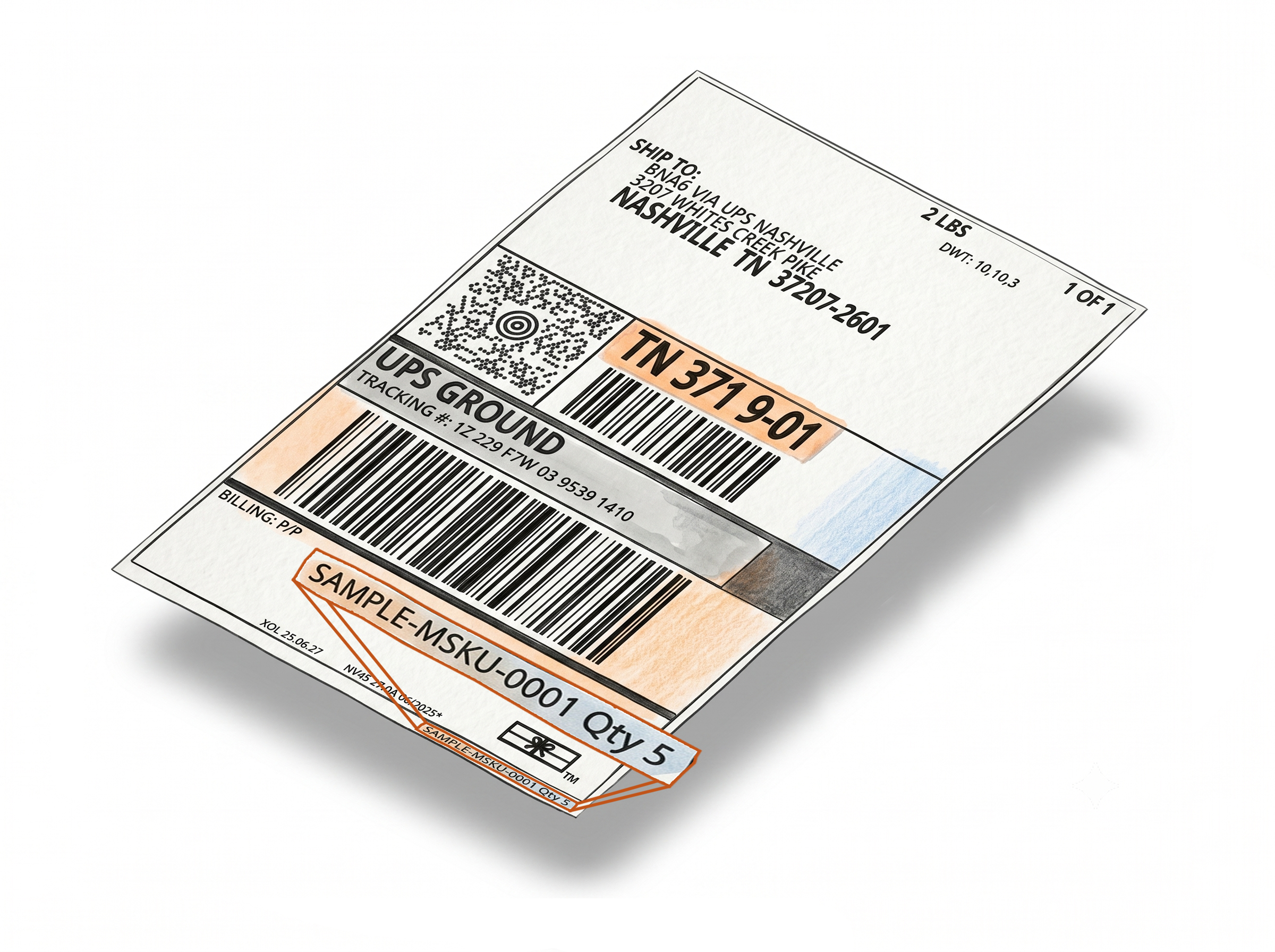
The free text is automatically added to the bottom of the Single SKU Box Labels for each product - whether you're using the Send to Amazon or AWD workflow, and whether the shipment is SPD or LTL. Download and print as usual - no extra steps needed.
Done!
How to Add Custom Text to Amazon Box Labels
Everything You Need for Smarter Shipments
Every tool you need to label, pack, and ship your FBA inventory with confidence.
Shipping, Box Label AndPacking Slip Customization
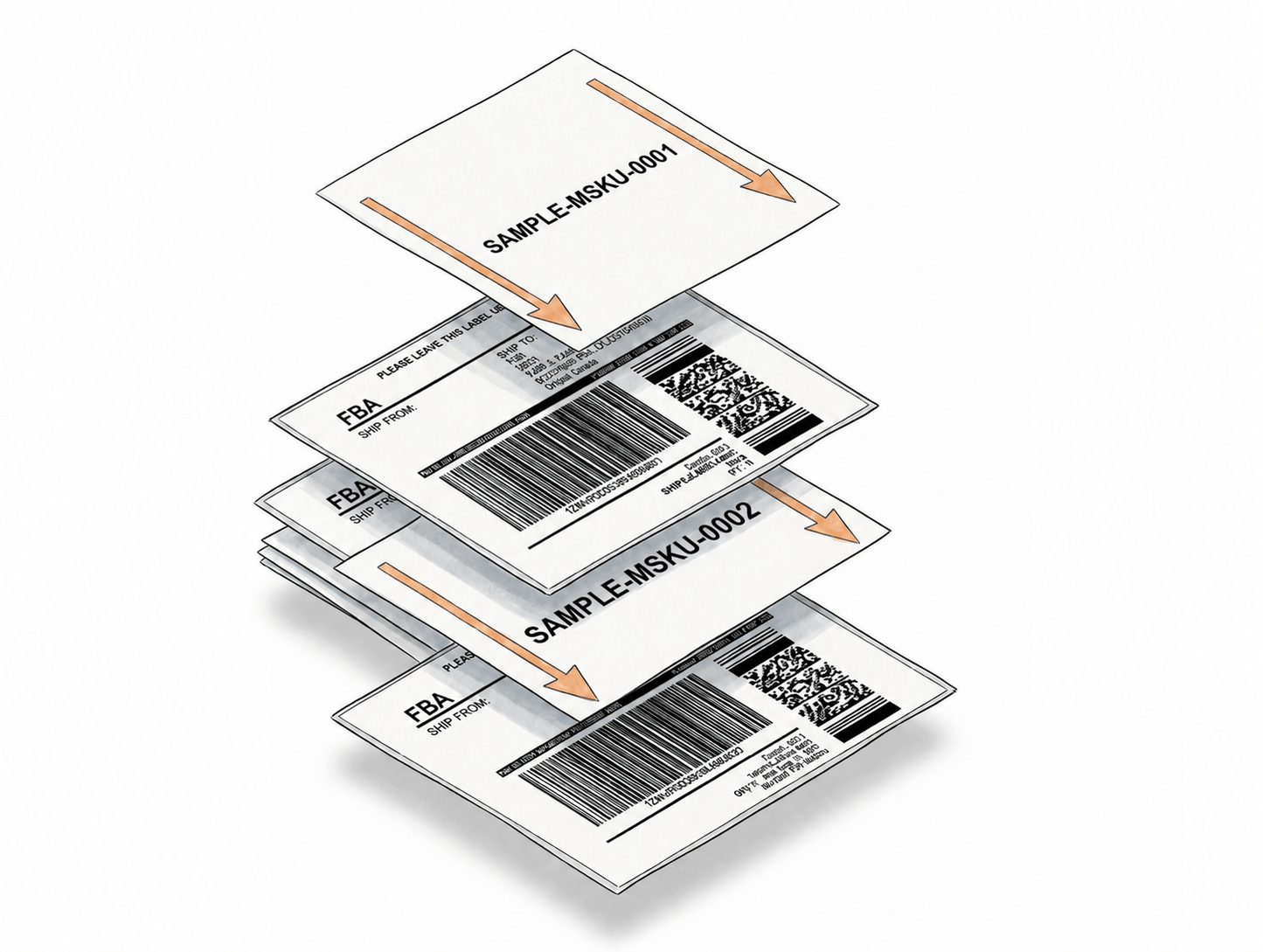
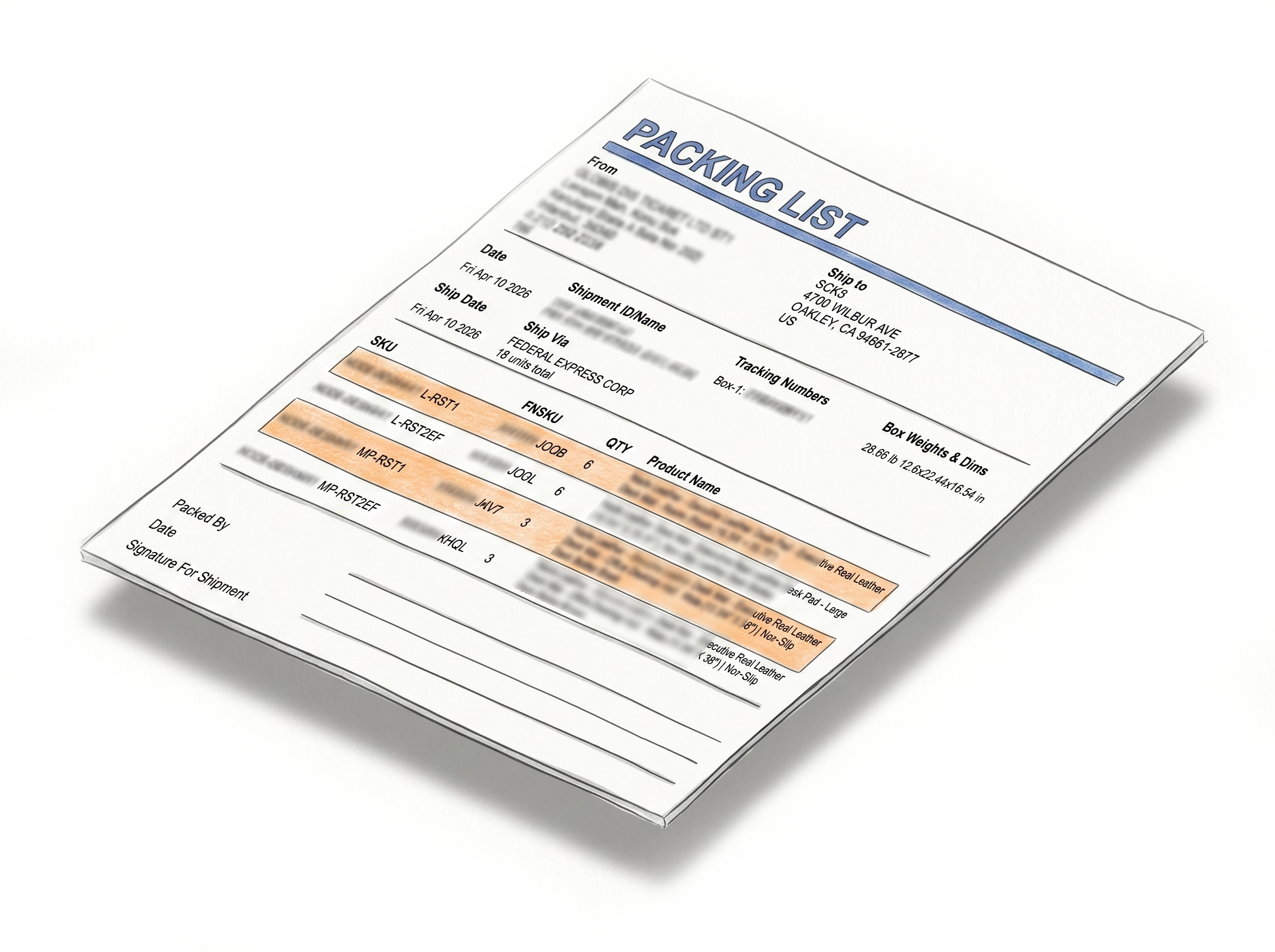
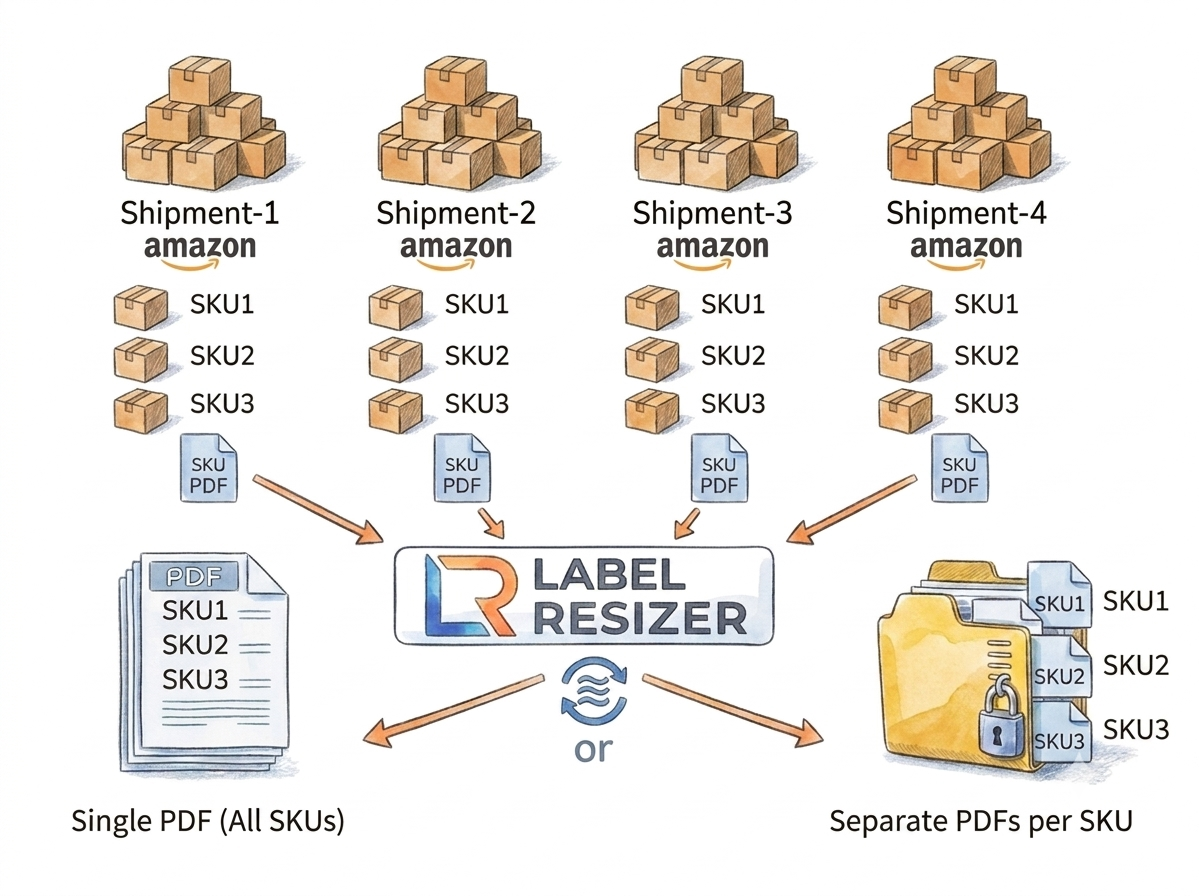
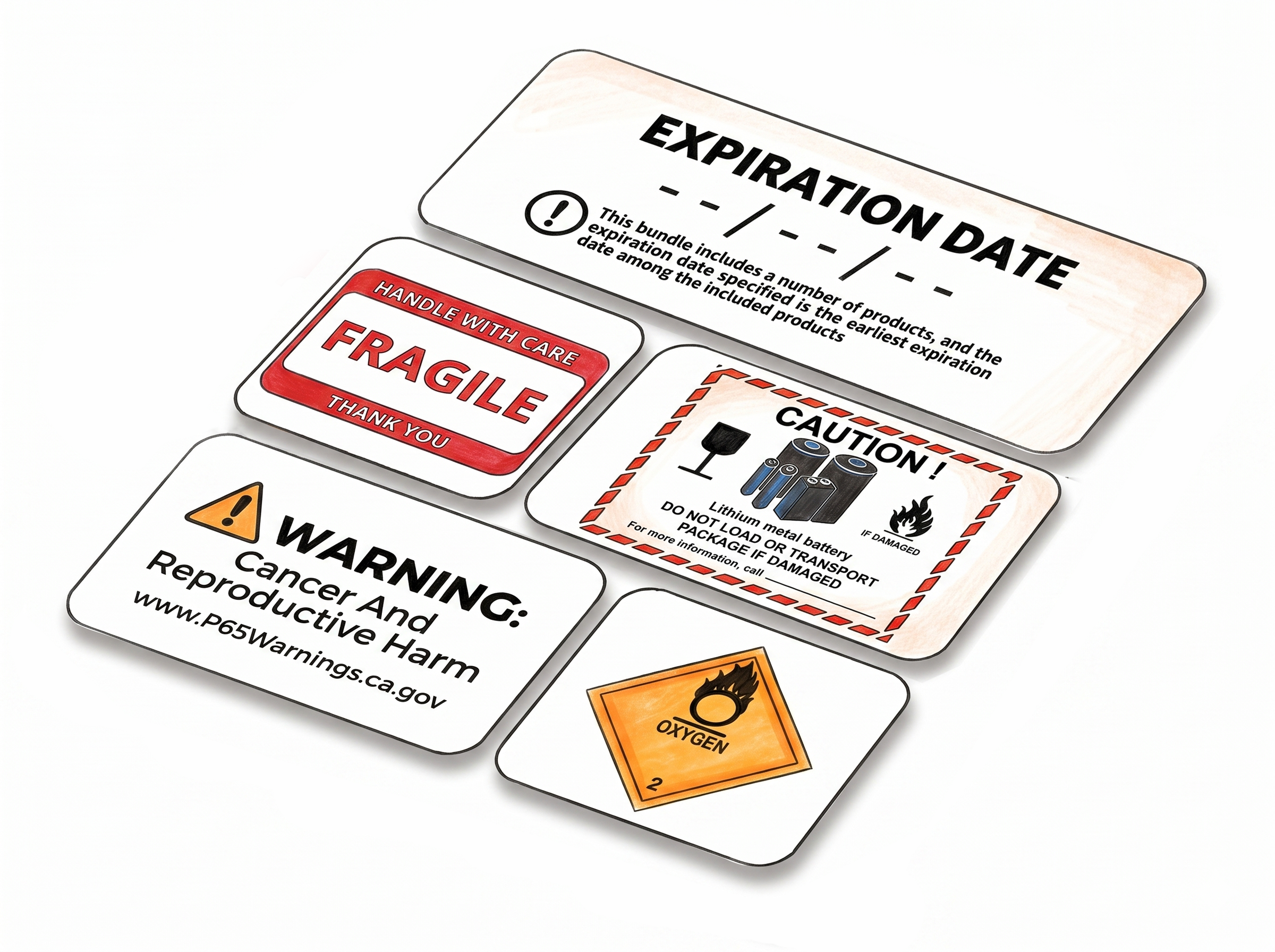
Multiple Ways to Generate
Choose A Plan
Get 100 Product Labels And 10 Shipping Labels Free Every Month - No Credit Card Needed
Monthly Yearly 2 months free
Frequently Asked Questions
Everything you need to know about adding custom free text to Amazon box labels - across the Send to Amazon and AWD workflows, for SPD and LTL shipments.
Where does the custom text appear on the box label?
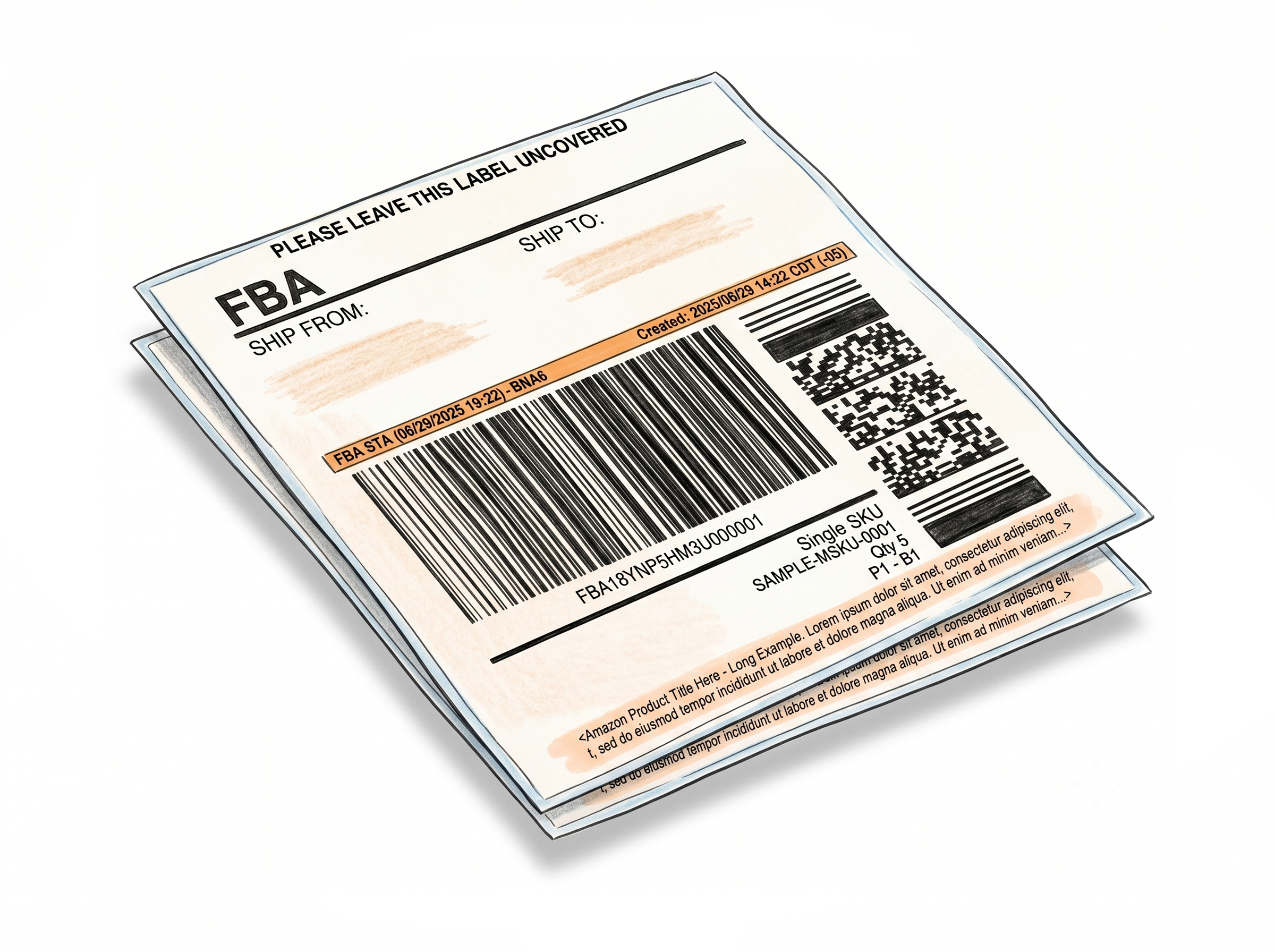
The free text is added to the bottom of the Single SKU Box Label, below the existing barcode and product information.
Can I enter different text for different SKUs in the same shipment?
Yes. The popup appears separately for each product during the printing session, so you can enter different text for each SKU in the same shipment.
Does the free text feature work with the web uploader?
No. The Add Free Text feature works exclusively through the Label Resizer Chrome and Firefox extension inside Amazon Seller Central. It is not available via the web uploader.
Do I need to re-enable the feature every time I print labels?
No. Once you enable Add Free Text in Shipping Label Settings and click Save, it stays active for all subsequent label printing sessions until you disable it.
Do I need a Label Resizer account to use this feature?
Yes. This feature requires a logged-in Label Resizer account and the Chrome or Firefox extension installed. You can start a free trial with no credit card required.
Does the Add Free Text feature work with SPD and LTL shipments?
Yes. Add Free Text works the same way for Small Parcel Delivery (SPD) and Less Than Truckload (LTL) shipments - the custom text is printed on the Single SKU Box Label regardless of the shipment type, whether you are using the Send to Amazon or AWD workflow.
Is Add Free Text available for both Send to Amazon and AWD workflows?
Yes. The feature works with both the standard Send to Amazon workflow and the Amazon Warehousing and Distribution (AWD) workflow, for SPD and LTL shipments alike. As long as Single SKU Box Labels are being generated and printed through the Label Resizer extension, your custom text will appear on them.
Can I change the font size of the custom text?
Yes. The label reserves an area for your custom text at a default font size, and you can adjust that size anywhere from -50% to +50% of the default - useful for fitting longer notes or making short notes more visible.