
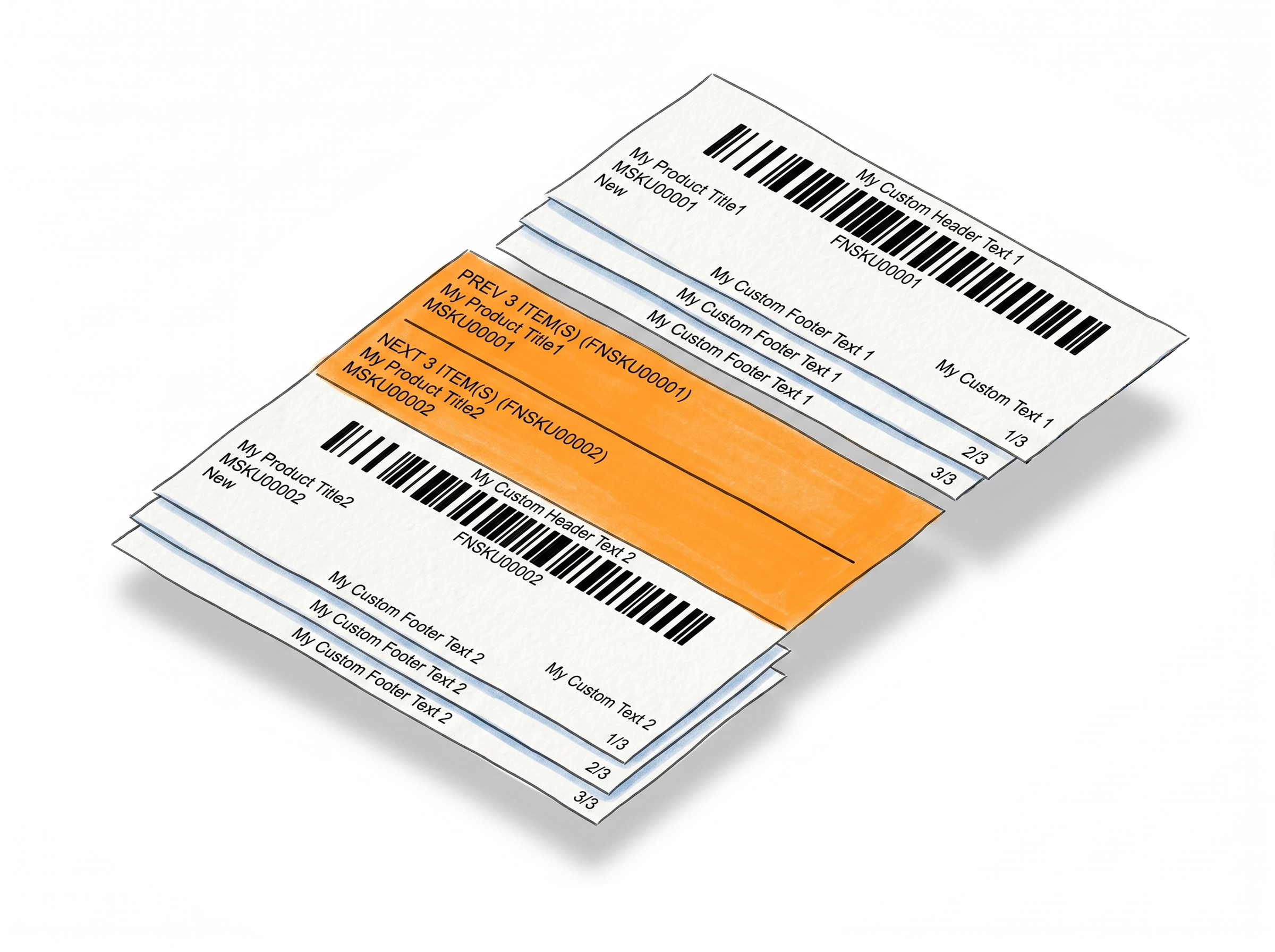
Eliminate Counting Errors with Product Label Item Numbering
Automatically add sequential numbers to your product labels and keep your labeling process organized. Whether you're preparing inventory for Amazon, Walmart, a 3PL warehouse, or your own fulfillment operation, Label Resizer helps you track quantities, verify item counts, and reduce costly shipping errors.
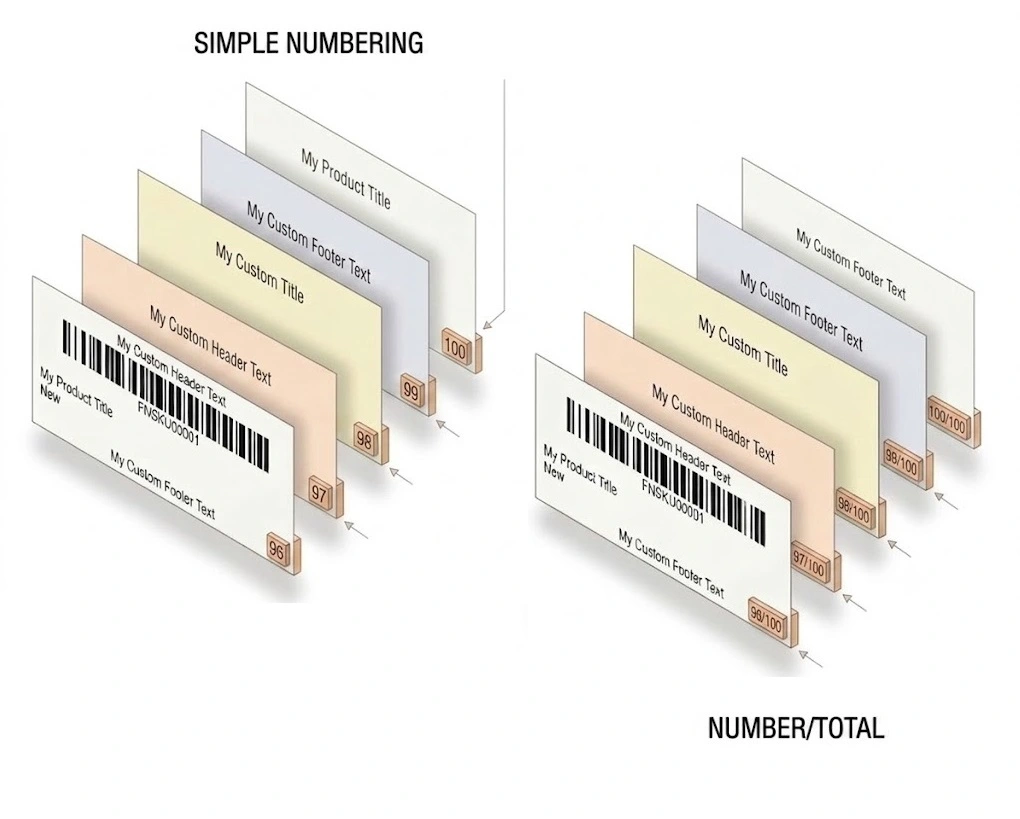
Choose between simple numbering (1, 2, 3...) or Number/Total format (1/100, 2/100, 3/100...) to ensure every item is accounted for before shipment.
Two Numbering Formats, One Setting
One toggle, two formats, zero manual counting
Enable once in settings and every label in every batch comes out pre-numbered - exactly the way you need it.Simple sequential numbering
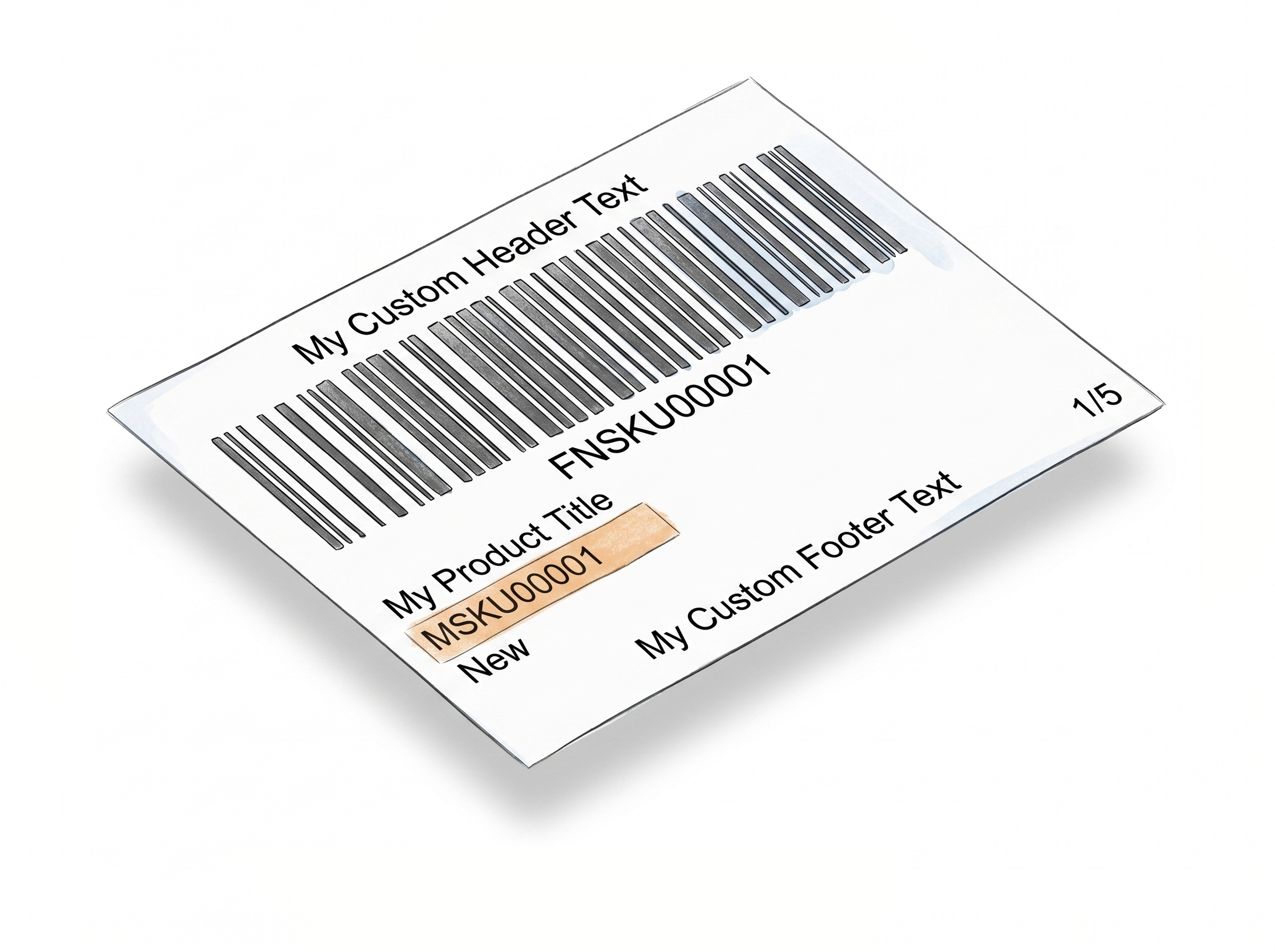
Choose the Number option and each label gets a number in the lower-right corner: 1, 2, 3 - incrementing automatically through the entire batch.
Number/Total Piece format for full visibility
Choose Number/Total Piece and each label shows where it sits in the full batch: 1/100, 2/100, up to 100/100. At a glance, you know exactly how many are done and how many are left.
Resets per FNSKU group
Numbering is applied within each FNSKU group separately and resets automatically when a new group starts. Mixed batches stay clean and organized without any manual intervention.
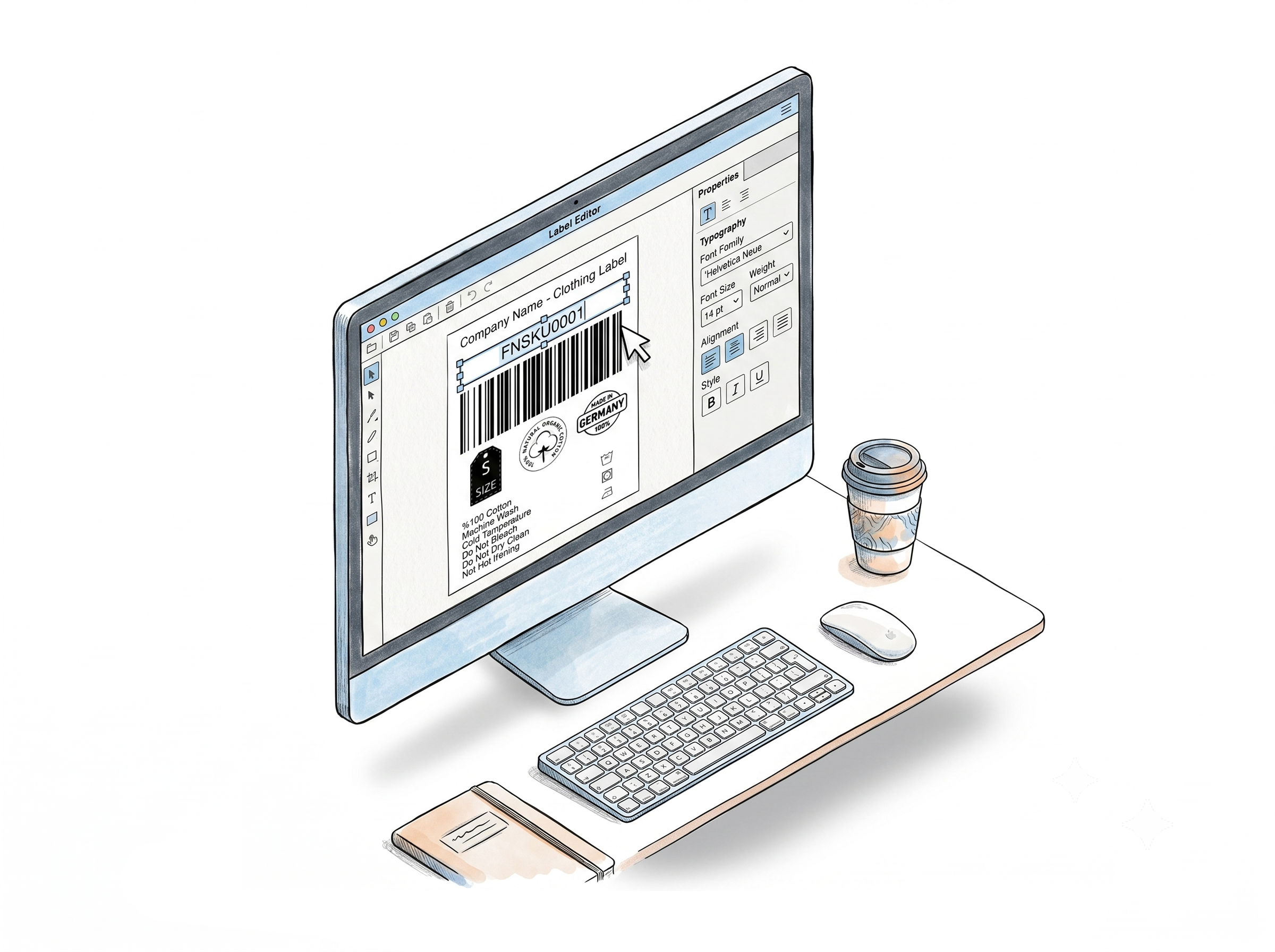
Label Editor support
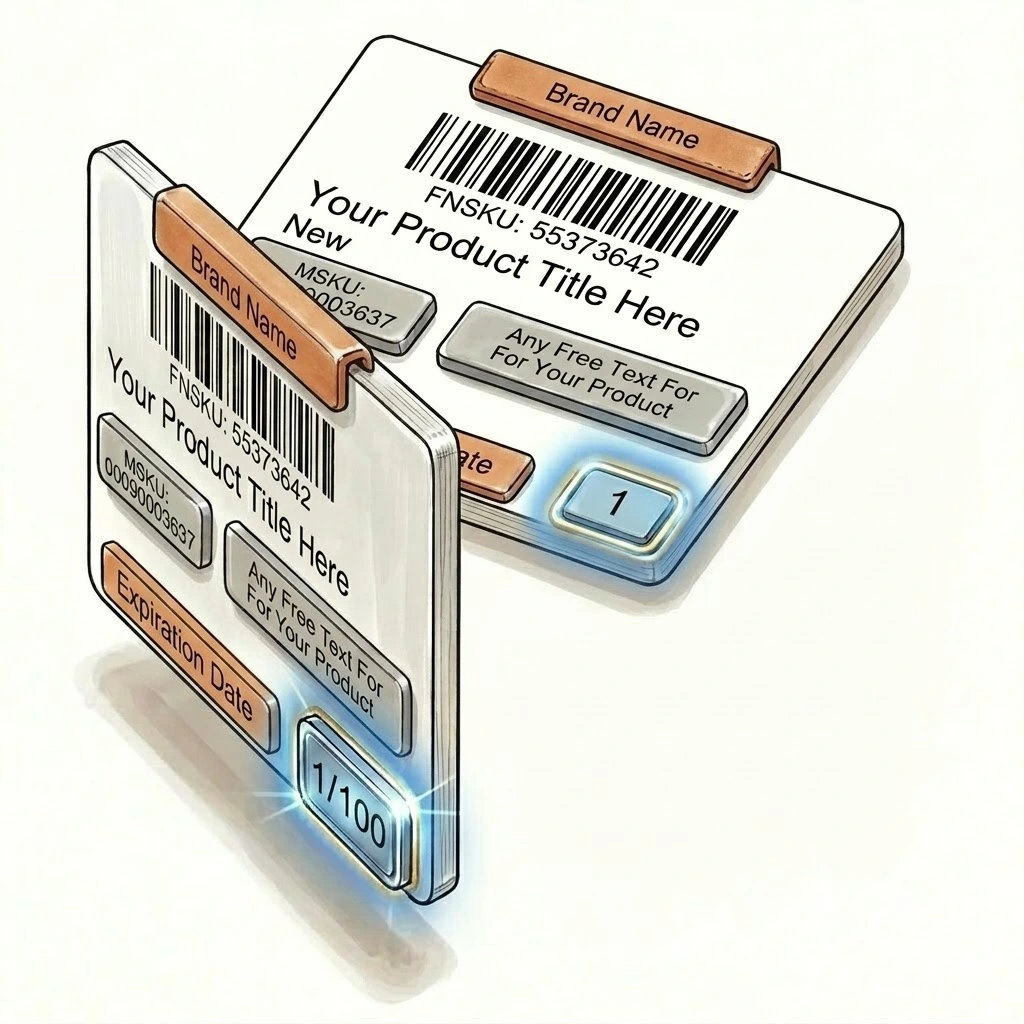
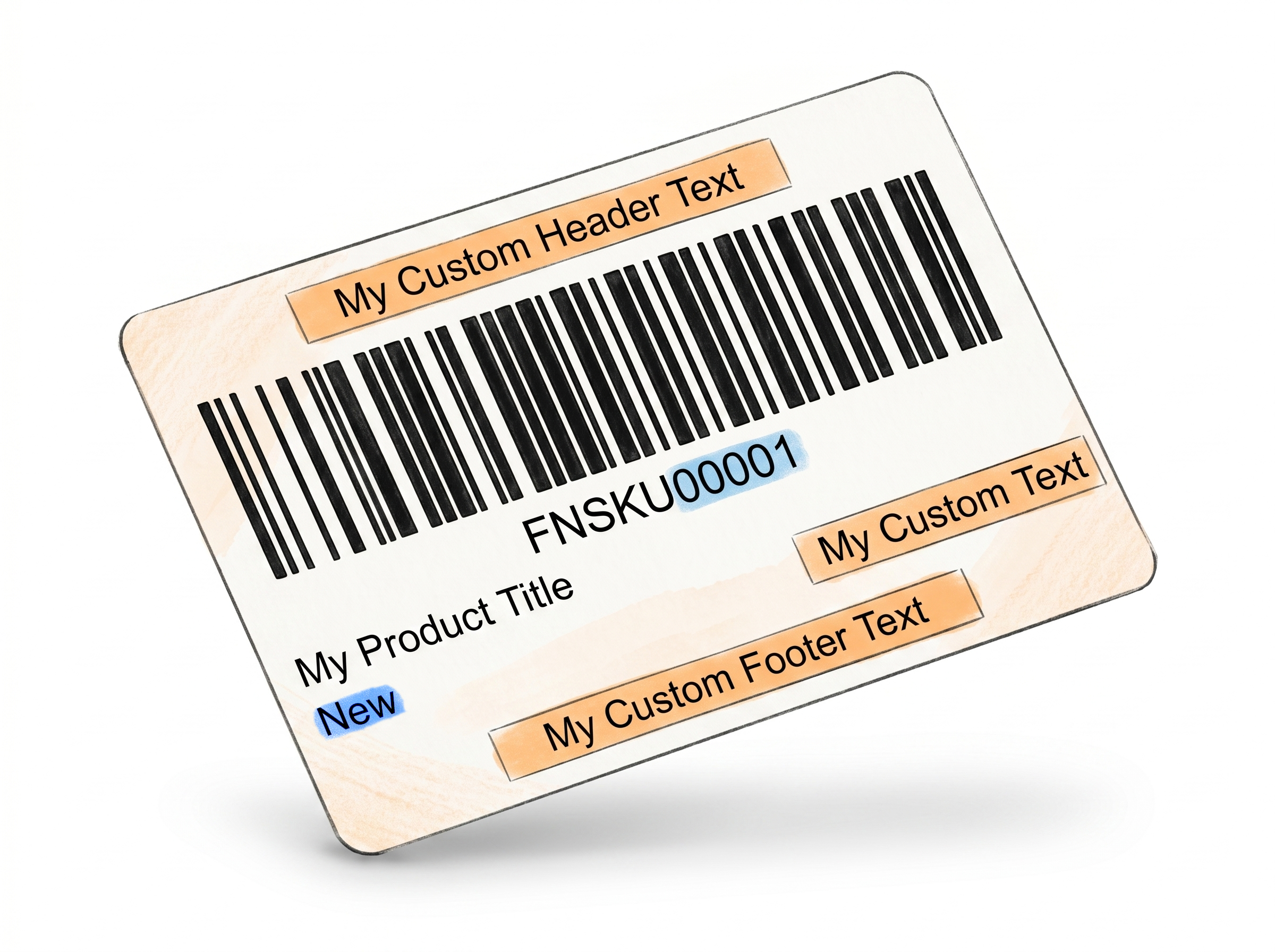
If you're using the Label Editor to design custom label layouts, place the Item Number or Item Number/Total element wherever you want the number to appear. No additional settings needed.
Fewer Shipping Errors, Better Inventory Control
A built-in count reference at every stage - from labeling table to dispatch.
Catch mistakes before they leave the warehouse
Numbered labels give you a physical count you can verify at every stage - labeling, boxing, and dispatch. If label 73 is missing from a 100-piece batch, you'll know immediately.
A practical second check on quantity
Before a shipment goes out, the Number/Total Piece format tells you whether every unit is accounted for. It works as a built-in audit without adding a separate counting step to your workflow.
Supports inventory management for Amazon and Walmart
Knowing exactly how many units were labeled per FNSKU helps reconcile your prep counts with your shipment records - reducing discrepancies before they become reimbursement issues.
No manual numbering, no stickers, no markers
The number is printed directly onto the label at generation time. Nothing to write, nothing to apply separately, nothing to misplace.
How It Works
Enable once, and every label comes out numbered automatically.
Step 1: Enable Numbering in Label Settings
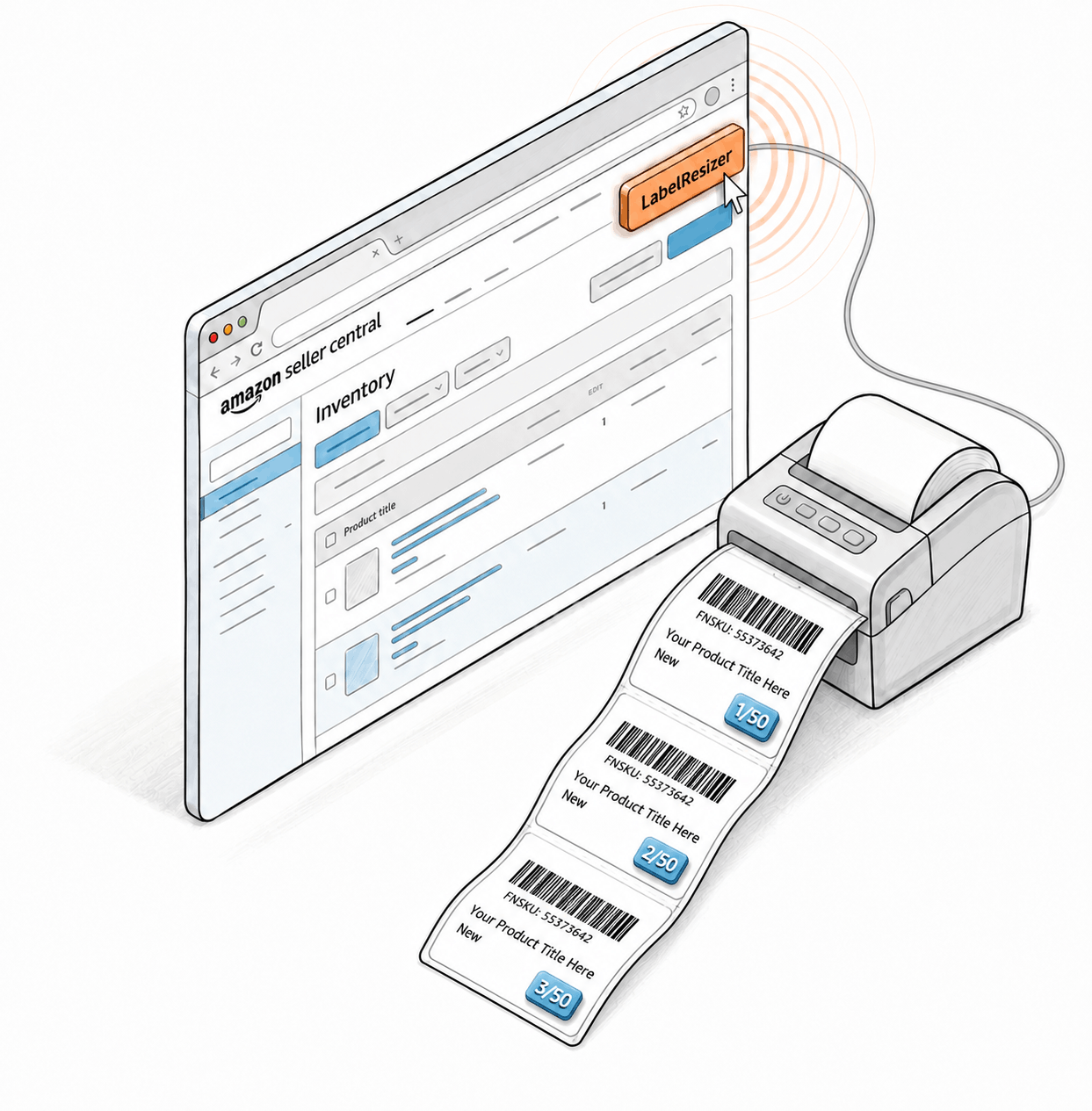
Go to Product → Product Label Settings in your Label Resizer dashboard. Toggle on "Add Item Number," select your preferred format (Number or Number/Total Piece) from the dropdown, and save.
Step 2: Generate Labels as Normal
Labels are generated through the web uploader or browser extension as usual. Numbers are added automatically in the lower-right corner of each label, grouped and reset per FNSKU - no extra steps required.
Step 3: Pack and Ship with Confidence
Your printed labels come out pre-numbered. Use them as a count reference while labeling products and boxing shipments. If you're using the Label Editor, place the numbering element wherever suits your layout.
Done!
How to Add Item Numbers to Amazon Product Labels
Everything You Need for Smarter Product Labeling
Label Resizer gives you full control over how your product labels are created, organized, and printed.
Other Product Labeling Features
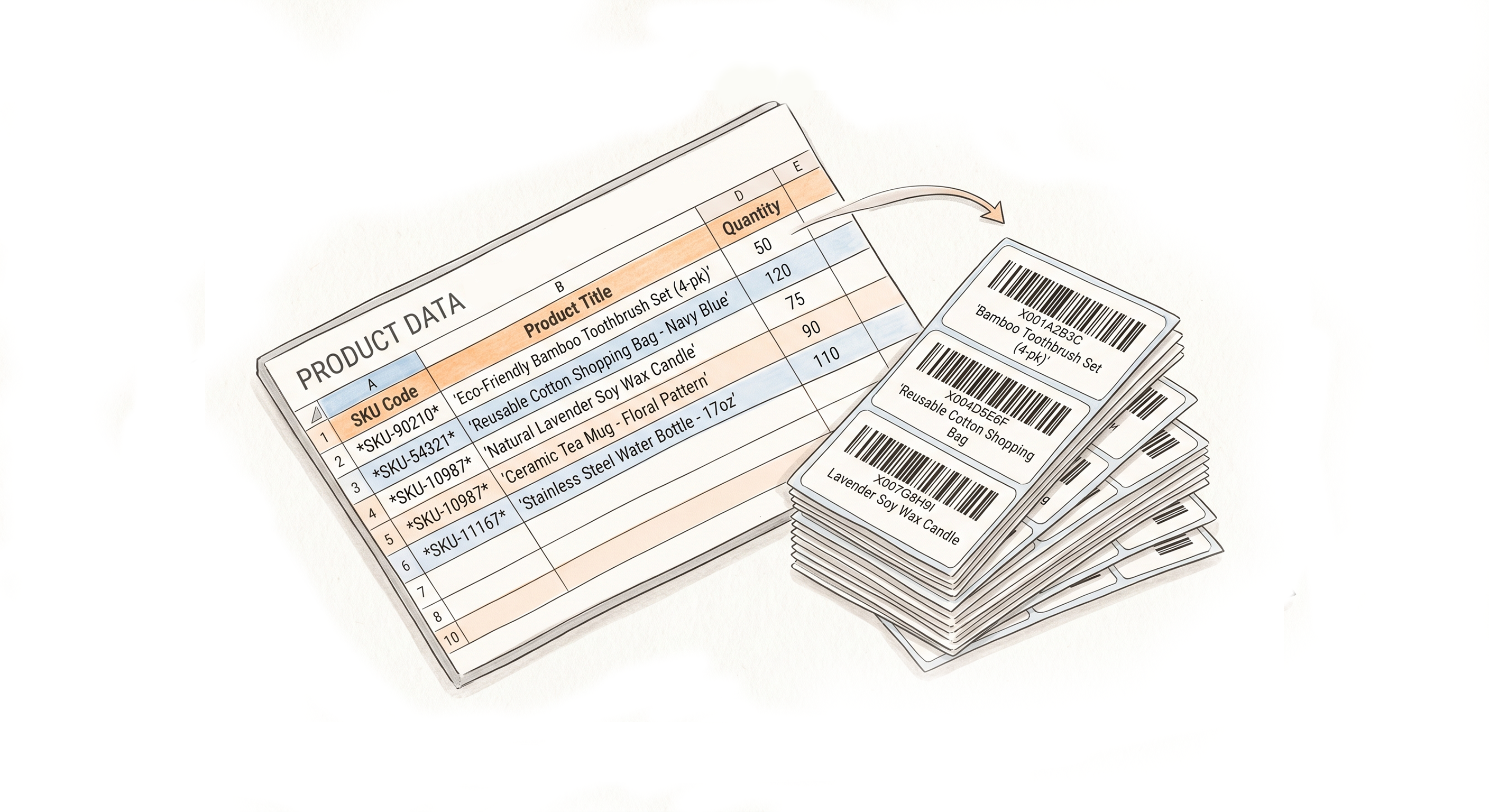
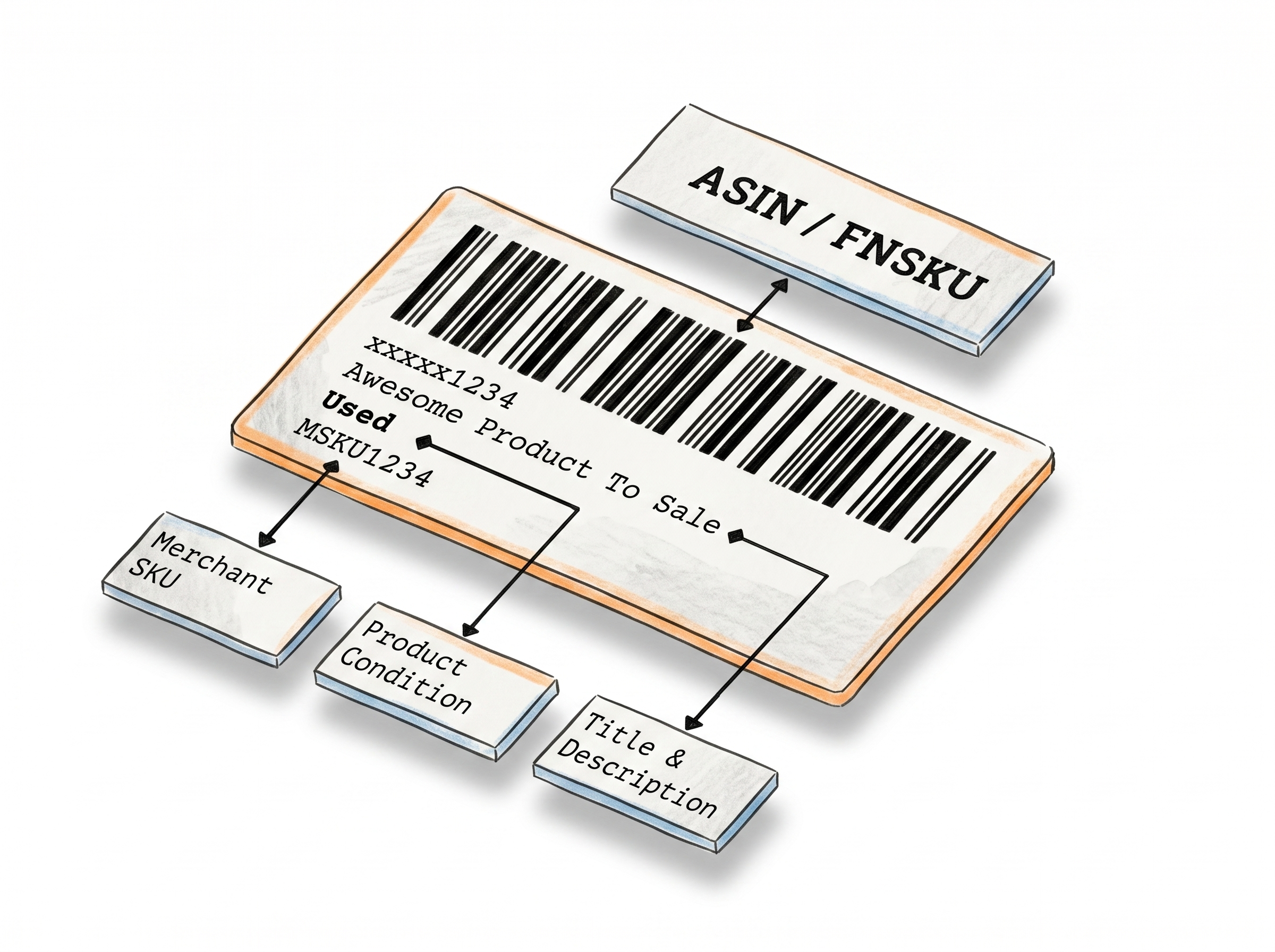
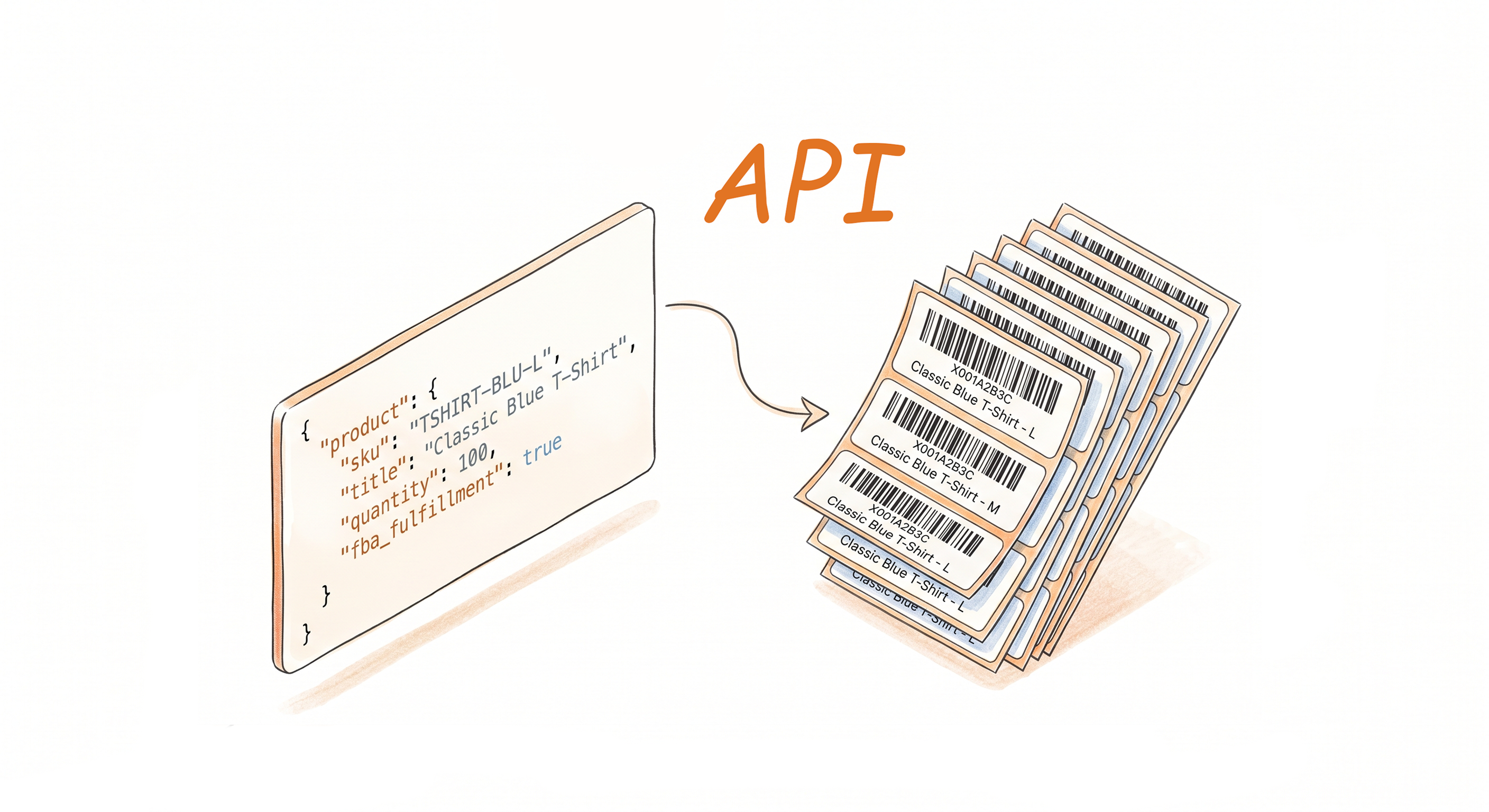
Flexible Ways to Generate Product Labels

Choose A Plan
Get 100 Product Labels And 10 Shipping Labels Free Every Month - No Credit Card Needed
Monthly Yearly 2 months free
Frequently Asked Questions
Everything you need to know about automatic label numbering.
What's the difference between Number and Number/Total Piece?
Number simply increments: 1, 2, 3 and so on. Number/Total Piece shows the current label's position out of the total - for example 12/100 - so you can see at a glance how many labels remain in the batch.
Does numbering reset between different FNSKUs in the same batch?
Yes. Numbering is applied within each FNSKU group and resets automatically when the next group begins. So if you have three FNSKUs with 50 units each, each group is numbered 1–50 independently.
Can I control where the number appears on the label?
On the default label layout, numbers appear in the lower-right corner. If you're using the Label Editor to design a custom label, place the Item Number or Item Number/Total element wherever you want it - no additional settings required.
Does this work with both the web uploader and the browser extension?
Yes. The numbering is applied at the point of label generation regardless of whether you use the web uploader or the browser extension. As long as the setting is enabled, numbers are added automatically.
Will the total count in Number/Total Piece update if I regenerate a partial batch?
The total reflects the number of labels being generated in that specific batch. If you regenerate a subset of labels, the total will reflect that subset's count.