
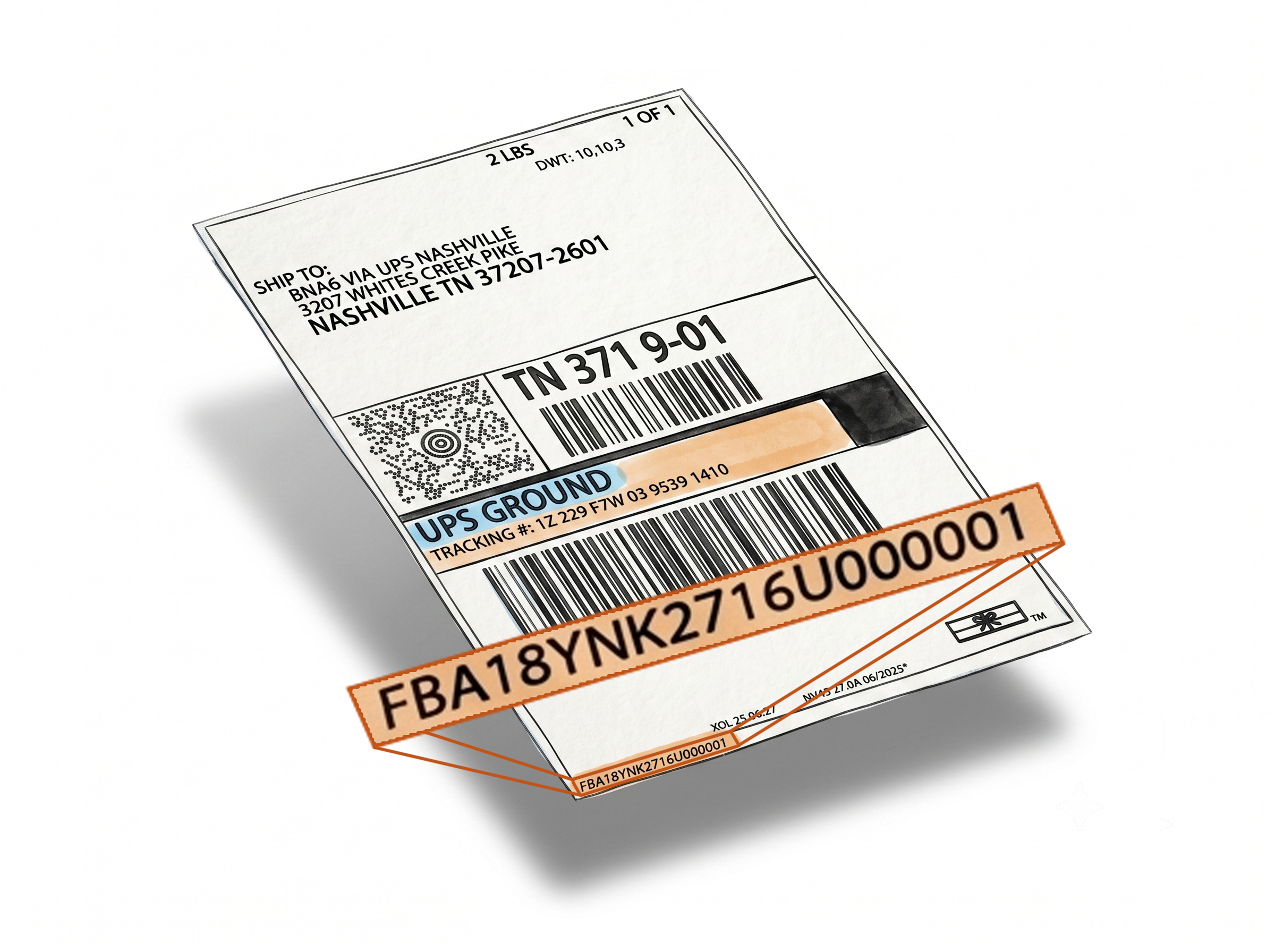
Print SKU and Quantity on Amazon FBA Shipment Labels Automatically
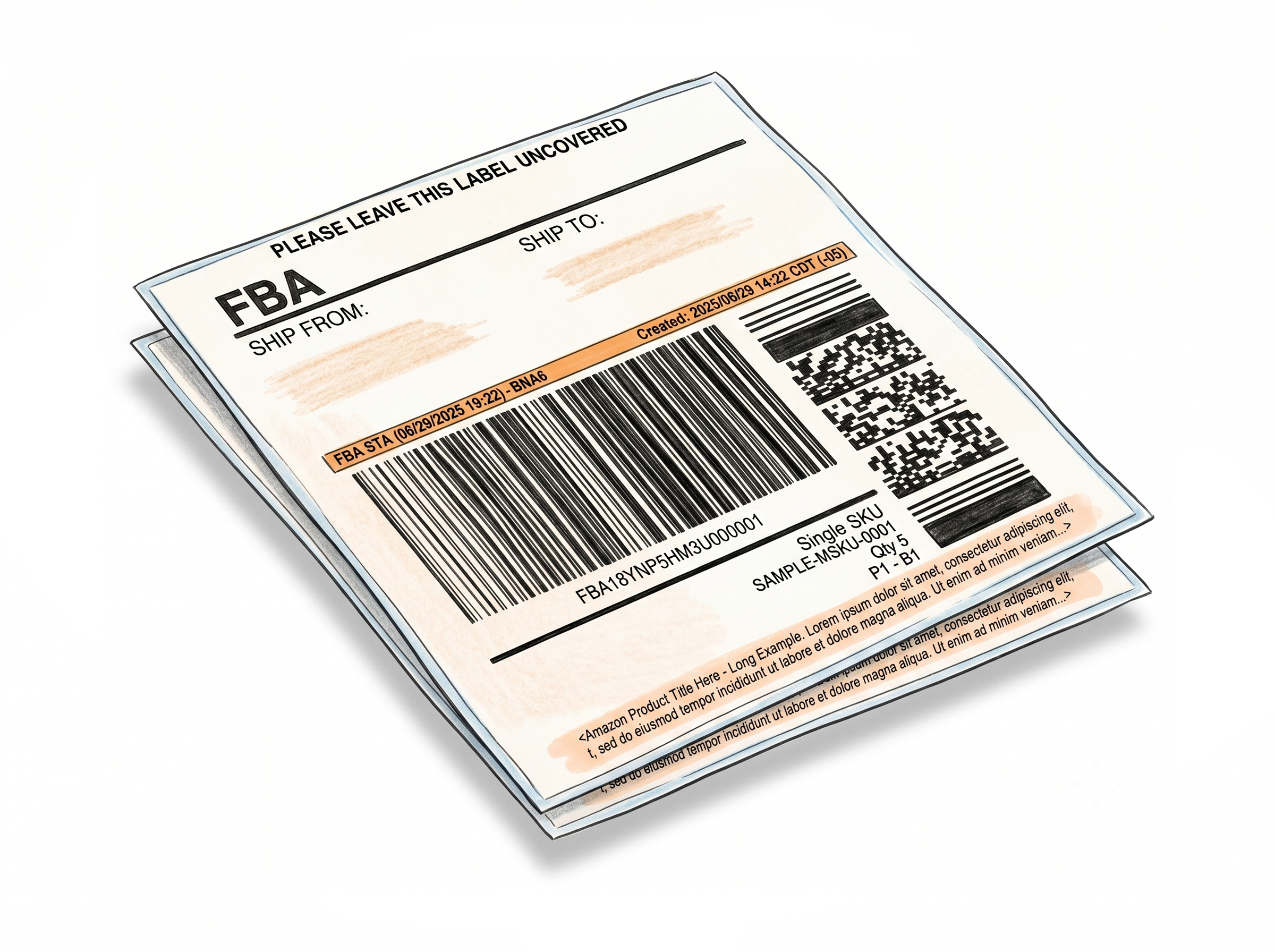
The Add SKU and QTY feature pulls the SKU and quantity from each FBA box label and prints them directly on the corresponding shipment label - automatically, during label generation through the Label Resizer extension inside Seller Central. If the SKU is padded or shortened, the system replaces it with the full version so the information on every label is complete and accurate.
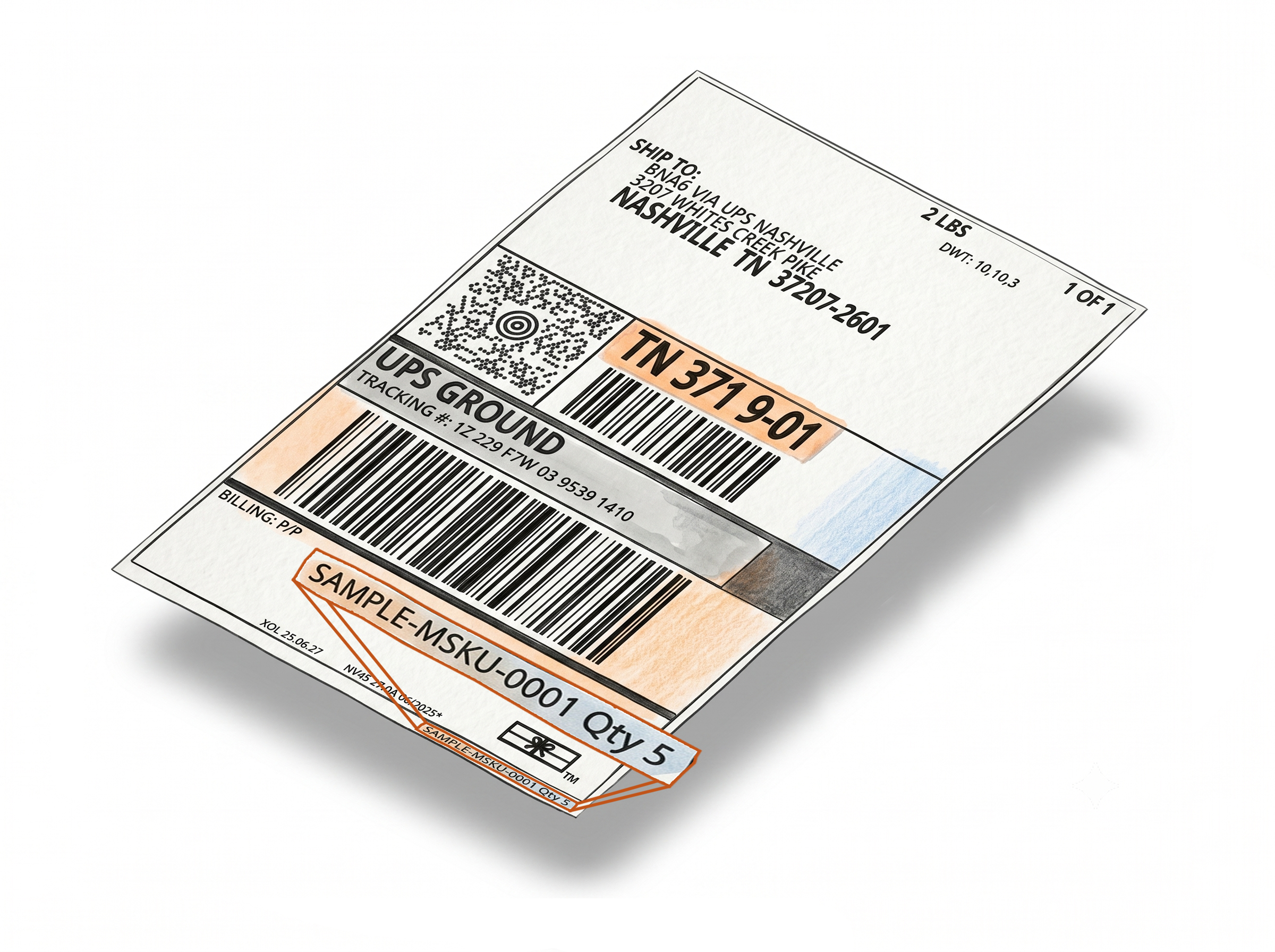
SKU and Quantity, Right on the Shipment Label
SKU and quantity printed automatically - no extra steps
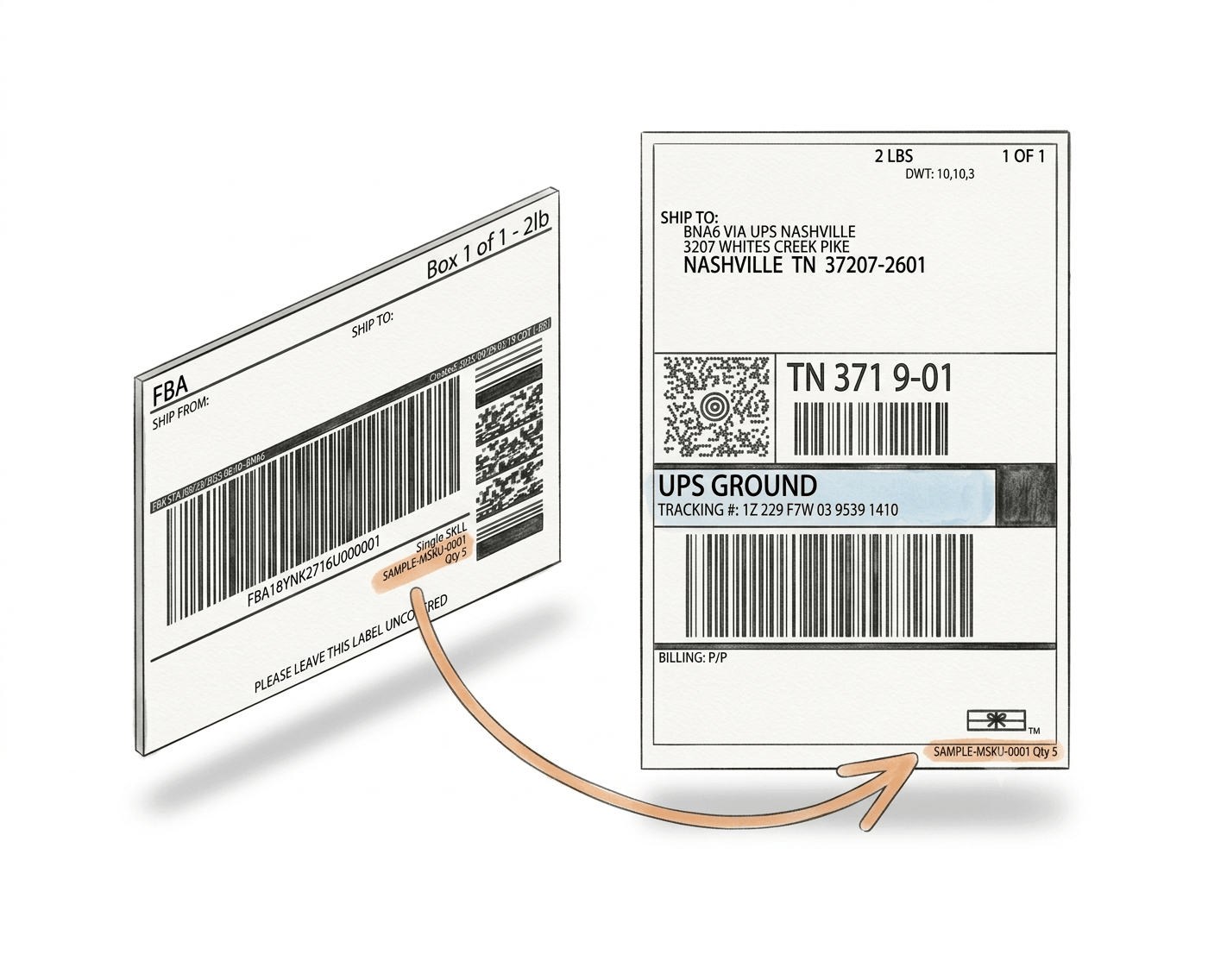
The extension retrieves data directly from each box label and prints it on the corresponding shipment label during generation.Automatic SKU and QTY from box label data
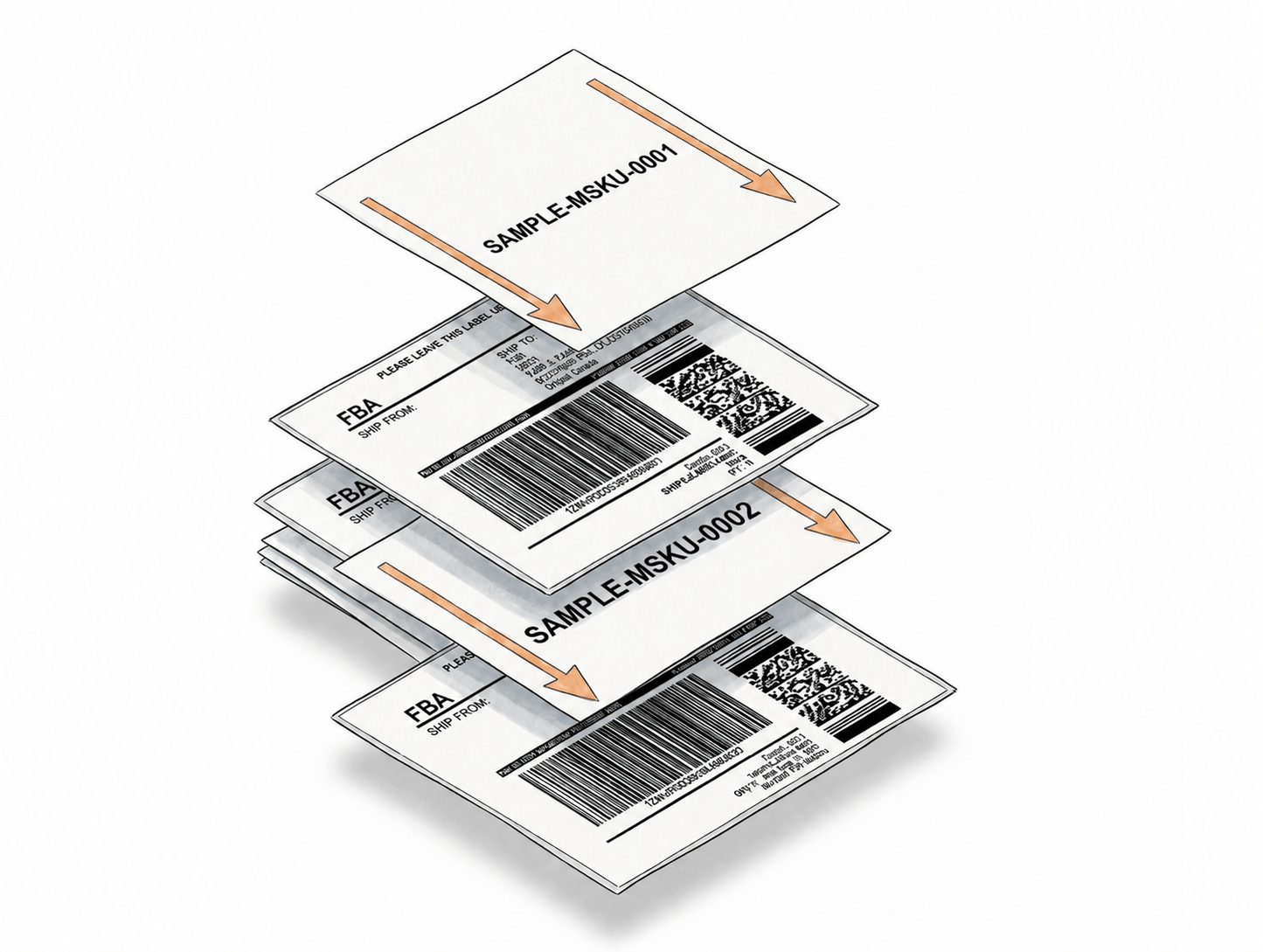
When printing shipment labels through the extension, the SKU and quantity from the matching box label are pulled and printed on the shipment label without any manual entry.
Full SKU always displayed
If the SKU stored in Seller Central is padded or shortened, the feature automatically replaces it with the complete version - so the label always shows the full, accurate SKU.
Faster shipment verification
Warehouse staff can confirm the SKU and quantity on the shipment label at a glance, without needing to cross-reference box labels or scan barcodes to verify what's inside.
Fewer Errors in High-Volume Operations
Every shipment label carries the right SKU and quantity - verified before it leaves the printer.
Matches shipment labels to contents without scanning
In busy warehouse environments, being able to read SKU and QTY directly off the shipment label - rather than scanning and looking up - cuts verification time significantly.
Reduces mislabeling in bulk shipments
When every shipment label carries the SKU and quantity it corresponds to, the chance of applying the wrong label to the wrong box drops considerably - especially across multi-SKU shipments.
No manual entry required
The extension retrieves SKU and QTY data automatically during the printing session. There's nothing extra to type or configure per shipment once the feature is enabled.
How It Works
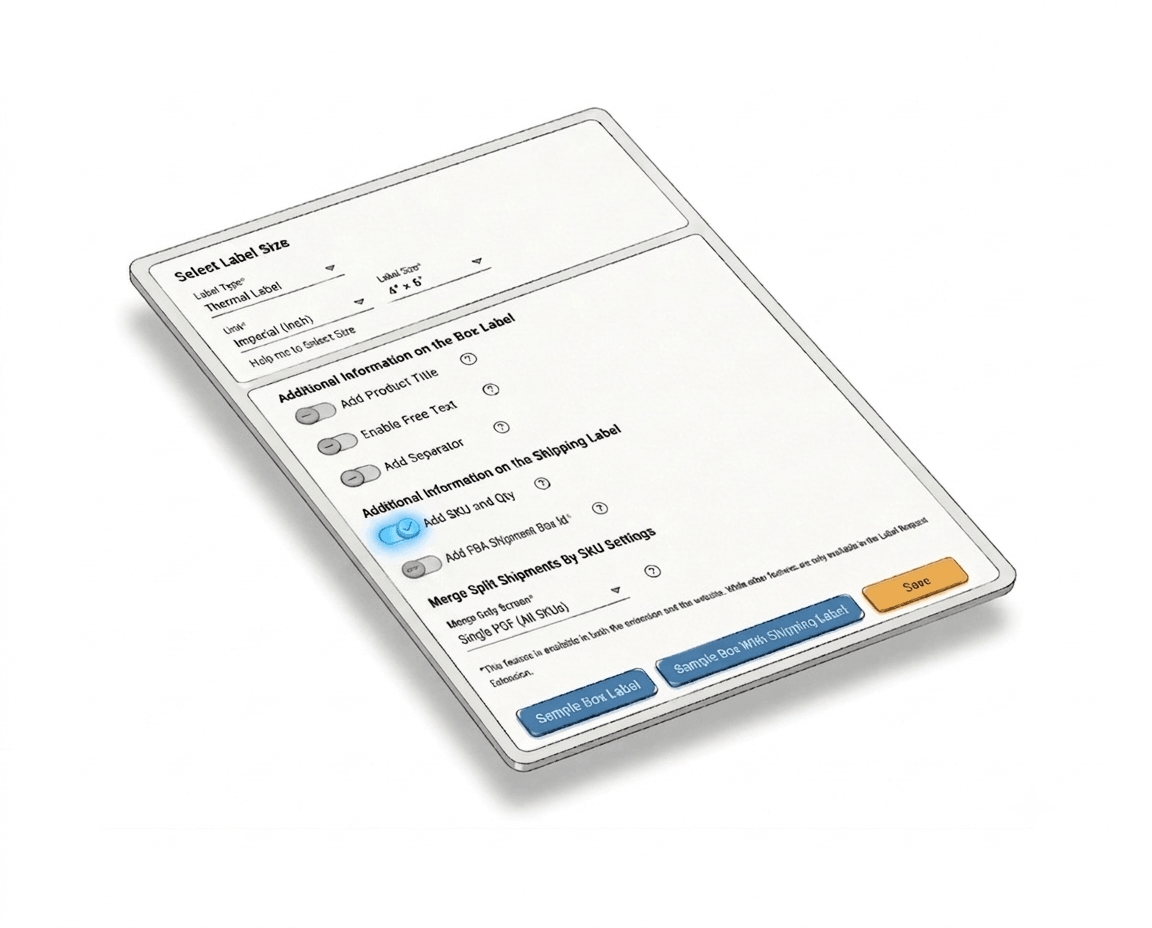
Enable the feature once, print as usual - SKU and QTY appear on every label automatically.
Step 1: Enable Add SKU and QTY
Log into Label Resizer, go to Shipping → Shipping Label Settings, enable the Add SKU and QTY feature, and click Save.
Step 2: Print Shipment Labels Through the Extension
Use the Label Resizer Chrome or Firefox extension inside Amazon Seller Central to generate your FBA shipment labels as usual. The extension retrieves SKU and quantity data automatically.
Step 3: SKU and QTY Print on Every Label
The full SKU and quantity from each box label appear on the corresponding shipment label in the output - no extra steps, no manual input.
Done!
Everything You Need for Smarter Shipments
Every tool you need to label, pack, and ship your FBA inventory with confidence.
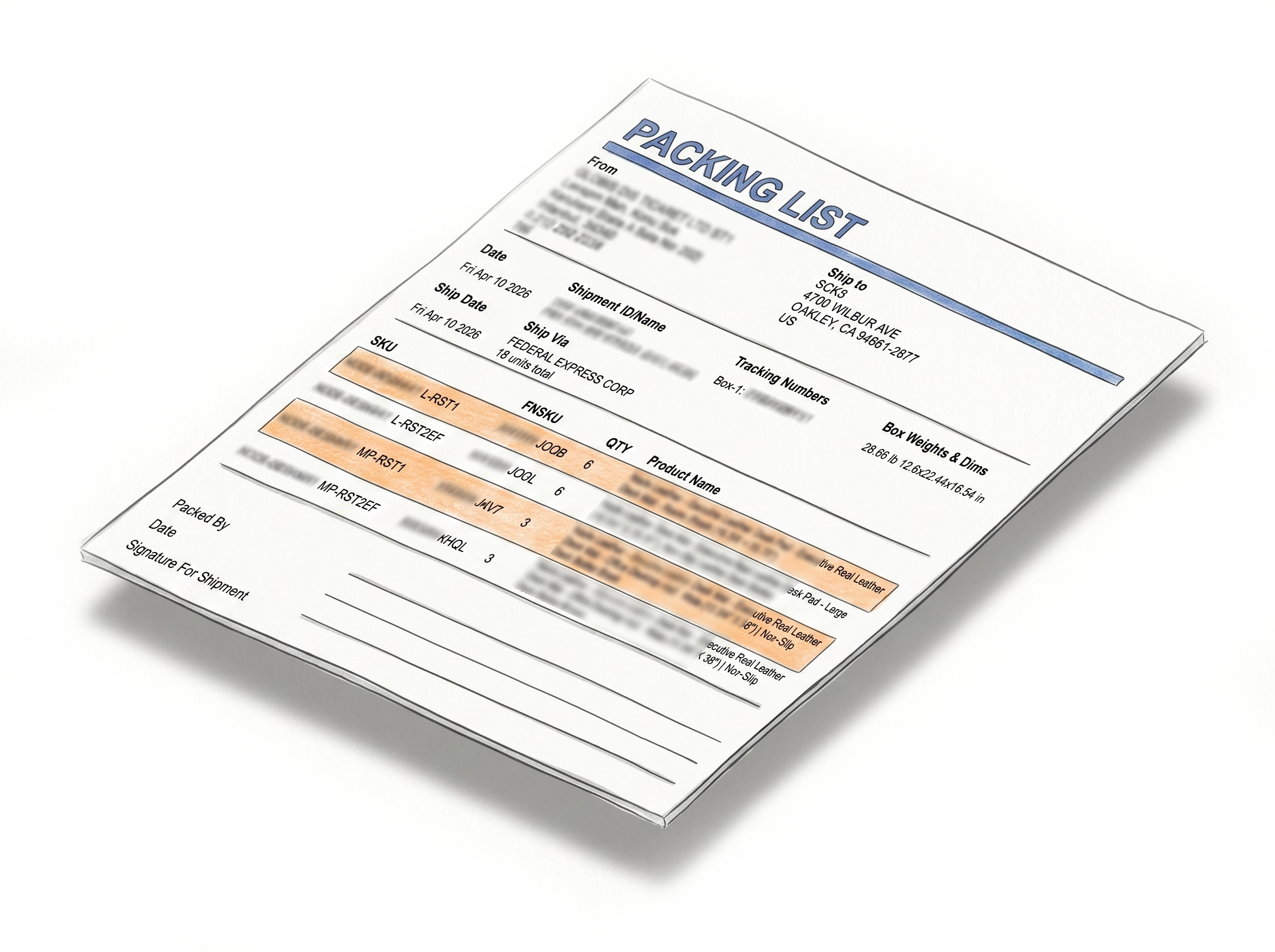
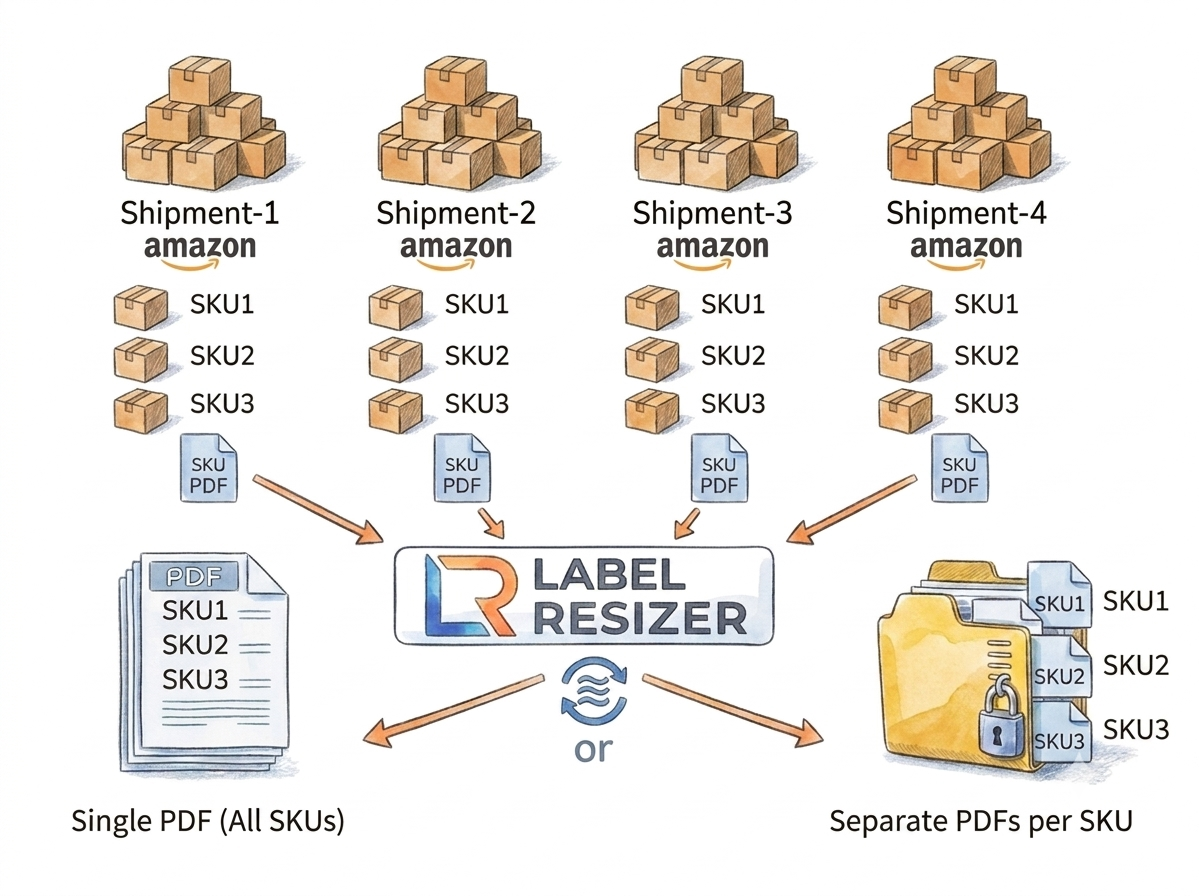
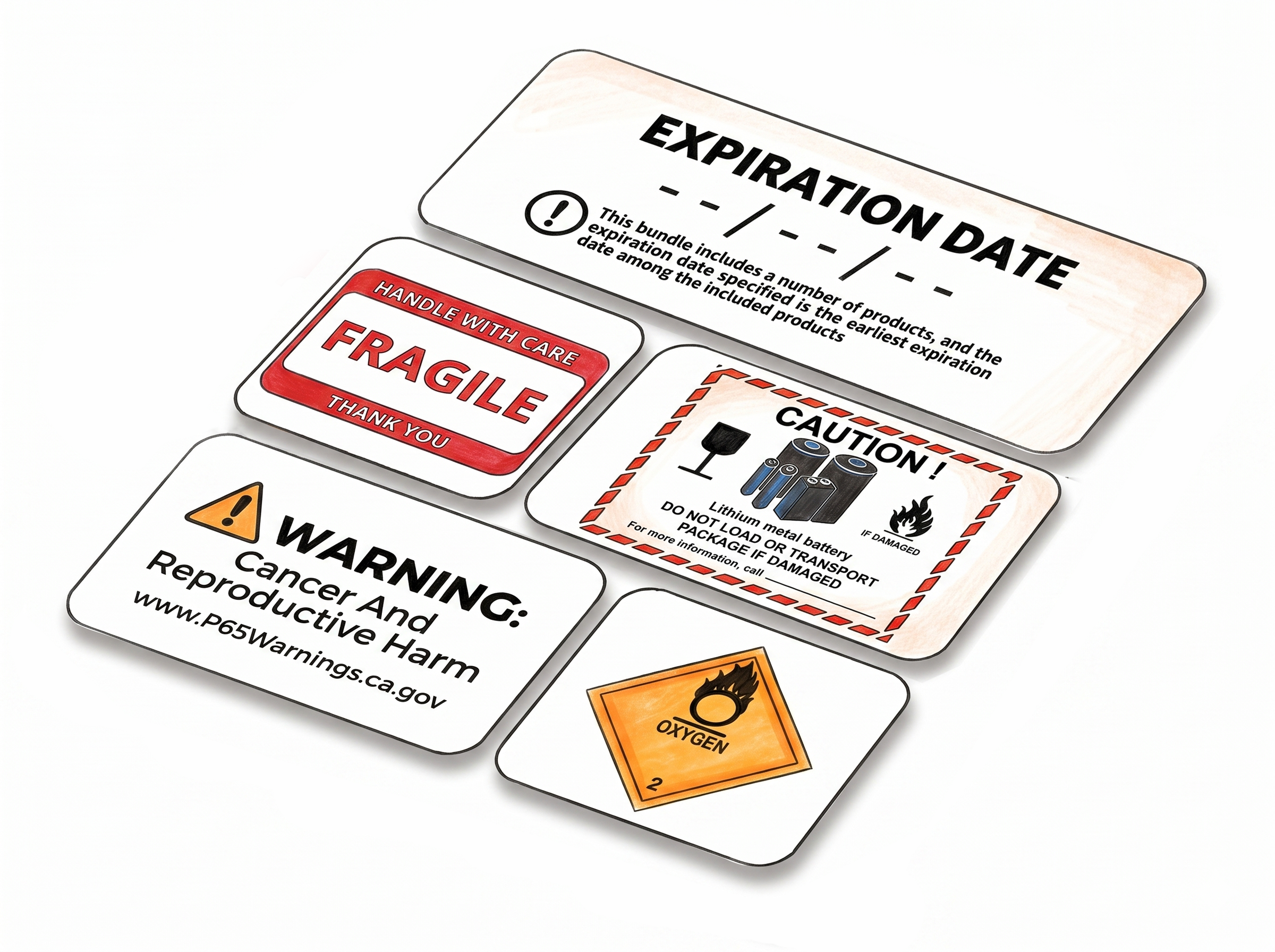
Shipping, Box Label AndPacking Slip Customization
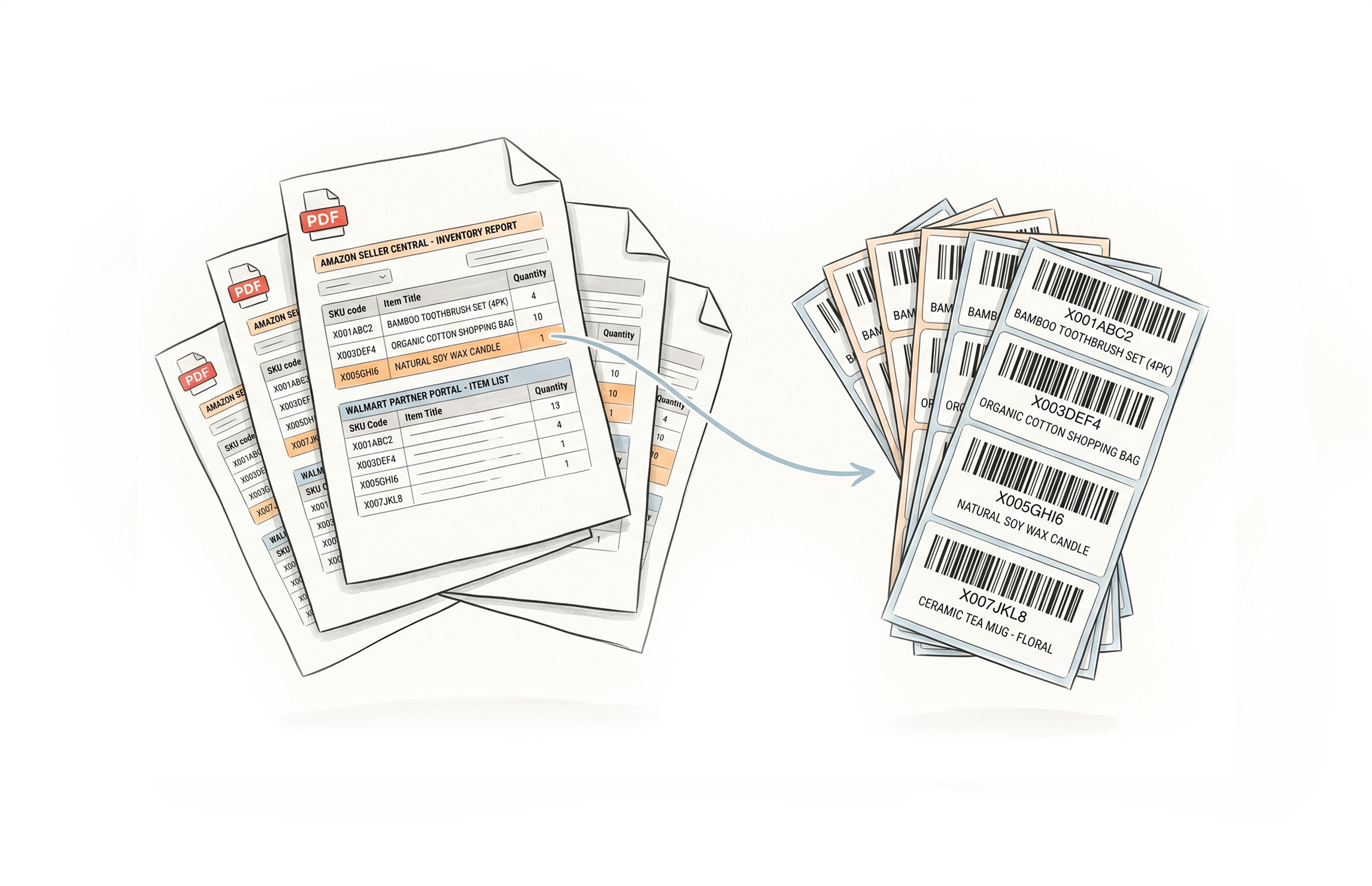
Multiple Ways to Generate


Choose A Plan
Get 100 Product Labels And 10 Shipping Labels Free Every Month - No Credit Card Needed
Monthly Yearly 2 months free
Frequently Asked Questions
Everything you need to know about printing SKU and quantity on Amazon FBA shipment labels.
What does the Add SKU and QTY feature do exactly?
It reads the SKU and quantity from each FBA box label and prints them on the corresponding shipment label during label generation via the Label Resizer extension. If the SKU is shortened or padded, the system automatically substitutes the full SKU to ensure accuracy.
Does this feature work with the web uploader?
No. Add SKU and QTY works exclusively through the Label Resizer Chrome and Firefox extension inside Amazon Seller Central. It is not available via the web uploader.
What happens if my SKU is padded or shortened in Seller Central?
The feature automatically detects padded or shortened SKUs and replaces them with the full version on the shipment label. You don't need to do anything - the substitution happens automatically during label generation.
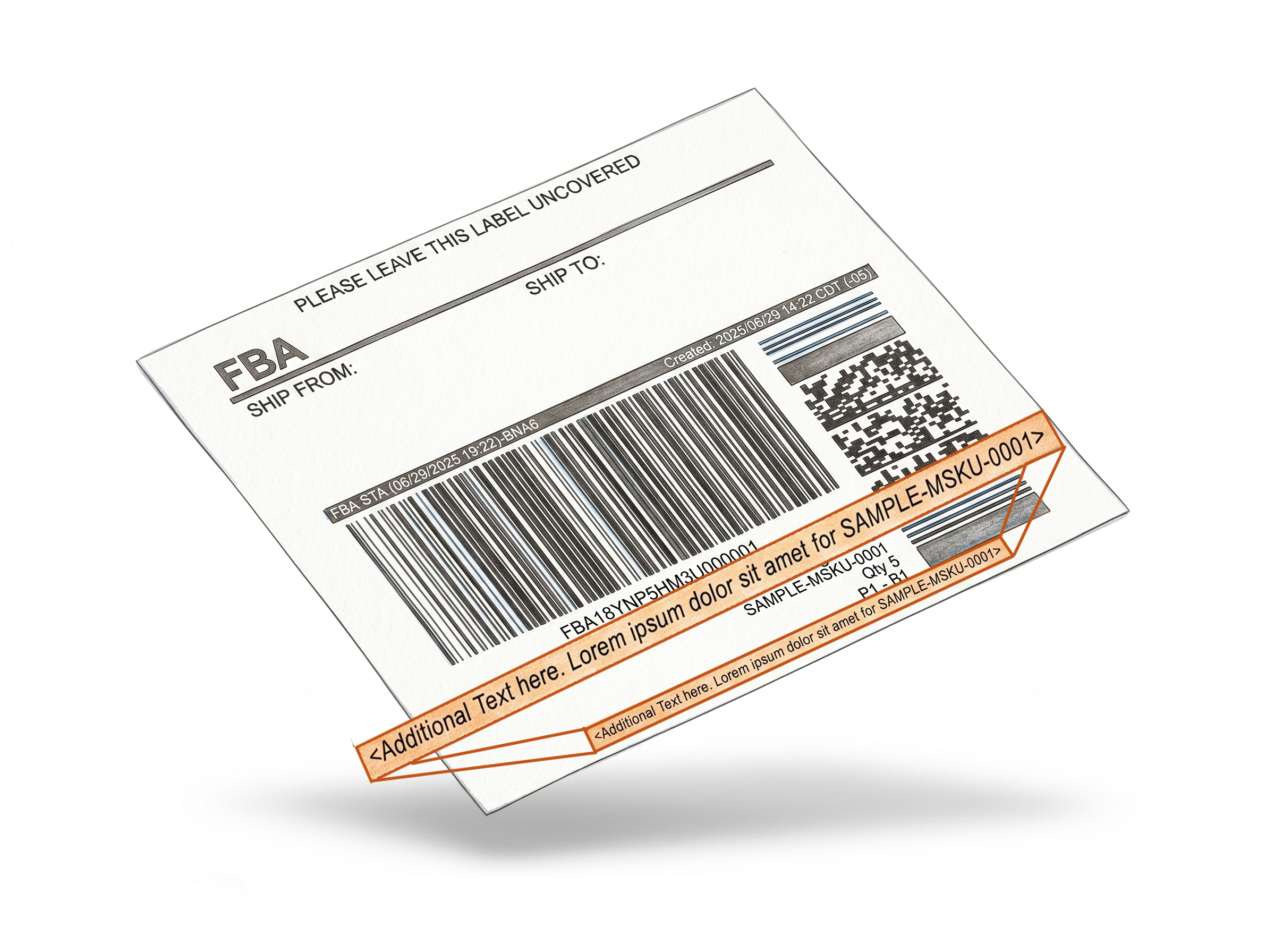
Where does the SKU and QTY appear on the shipment label?
The SKU and quantity are printed on the shipment label associated with the corresponding box. They appear as additional text and do not interfere with the required barcode or shipment label fields.
Does this feature work with Send to Amazon?
Yes. The feature works with SPD shipments created through the Send to Amazon (STA) workflow. When you generate shipment labels through the Label Resizer extension inside STA, the SKU and quantity from each matching box label are printed on the corresponding shipment label automatically.
Does this feature work with Amazon Warehousing & Distribution (AWD)?
Yes. SPD shipments in Amazon Warehousing & Distribution (AWD) are also supported. SKU and quantity data from each box label are printed on the corresponding AWD shipment label automatically during label generation through the extension.
Do I need a Label Resizer account to use this feature?
Yes. A logged-in Label Resizer account and the Chrome or Firefox extension are required. You can start a free trial with no credit card needed.