
Print Amazon Transparency Labels for Multiple Products in One Upload
The Label Resizer Transparency Label Maker now includes a Bulk - Multiple Products option for sellers who need to generate labels for different products in the same batch. Instead of using one Product ID for an entire upload, each row of the uploaded file contains its own Transparency code and Product ID. The article explains how the new workflow works, how to prepare the template, and when to use Multiple Products instead of the existing Single Product option.

If you regularly prepare Amazon Transparency labels for more than one product, organizing your codes can make the process easier. Label Resizer has always supported bulk label generation for a single product through its Transparency Label Maker. Now, with Bulk - Multiple Products, you can include Transparency codes for different products in the same upload.
Instead of preparing a separate file for each product, each row in the file contains the Transparency code and the Product ID it belongs to. This allows you to generate labels for several products from one upload.
The existing Single Product workflow is still available and remains the right choice when all of your codes belong to one product.
What Changed in the Label Resizer Transparency Label Maker
The original bulk workflow was designed around a simple setup: one product and multiple Transparency codes.
You selected a label layout, entered the product information, and uploaded the Transparency codes. If you had 200 codes for one product, all 200 could be generated in one batch.
With Bulk - Multiple Products, the Product ID is included in the uploaded file instead of applying one Product ID to the entire batch.
How the Multiple Products File Works
Select Your Layout
Start by selecting your label layout in the Label Resizer Transparency Label Maker. Label Resizer supports six Transparency label layouts, Type 1 through Type 6. Two of them, Type 5 and Type 6, are also available as 40-up Avery US Letter sheets, so you can print a full sheet of labels in one go instead of one label per page.
Preparing Your Data
Once you’ve picked your layout, open the Bulk - Multiple Products tab and download the template for that layout. The template gives you the exact column structure required for the selected label, so it’s the safest starting point instead of building the file from scratch.
At its simplest, every row needs a Transparency Code and a Product ID, which can be your product’s GTIN or SKU:

The Transparency Code identifies the code being printed, while the Product ID identifies the product associated with that code.
Depending on the selected label layout, the template may also include additional fields such as:
- Brand
- Description
- State
If you change the label layout, download the corresponding template again, as different layouts may require different columns.
Uploading the File
Before you upload, select the Barcode Type - Code 128, EAN-13, EAN-8, or UPC-A - for your Product ID.
The Transparency Code on every label is always generated as a DataMatrix code. The Product ID you enter, on the other hand, is generated as a barcode according to the Barcode Type you select here.
This step doesn’t apply to Type 1, Type 2, and Type 5. These layouts don’t print a separate product barcode at all - only the Transparency Code appears as a DataMatrix, and the Product ID is printed underneath it as plain text.
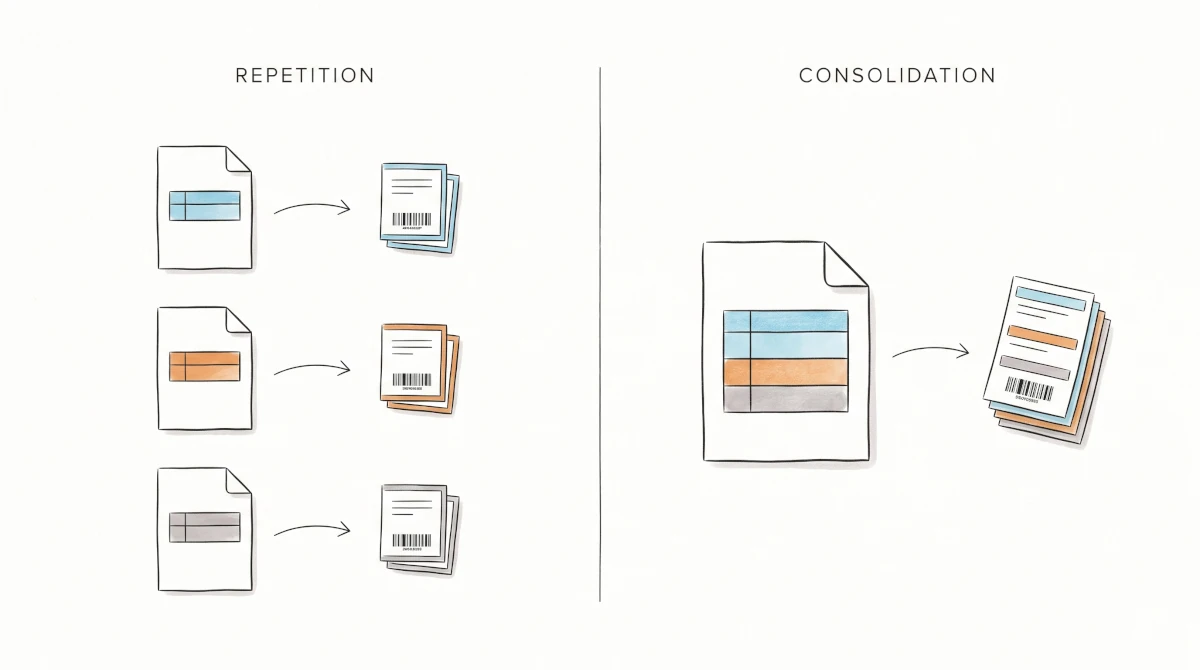
Once your file is ready, upload it through the Bulk - Multiple Products tab. Label Resizer checks the uploaded data before generating the labels - duplicate Transparency codes, missing values, and Product IDs that don’t match the selected barcode type are flagged row by row. After the file passes validation, Label Resizer uses the information from each row to generate the corresponding labels.
This makes it much easier to generate labels for several different products without switching tools or repeating the setup for each one.
Keep Transparency Codes and Product IDs as Text
Spreadsheet software can sometimes change product identifiers when you paste or edit them. Long numbers may be displayed in scientific notation, and leading zeros can be removed.
To avoid this, keep Transparency codes and Product IDs formatted as text.
The Label Resizer template already uses text formatting, so starting with the provided template is the safest approach. After adding your data, check a few values against the original source to make sure they have not been changed.
This is particularly important for identifiers containing leading zeros.
Generate Transparency Labels for Multiple Products
Bulk - Multiple Products gives Label Resizer users another way to prepare Transparency labels when a batch contains more than one product.
If all your codes belong to one product, continue using Bulk - Single Product. If your source file contains codes for several products, download the Multiple Products template for your selected layout, add the Product ID to each row, and upload the completed file.
You can try the new option in the Label Resizer Transparency Label Maker.